
ScaleGrowth offers a powerful Member CRM where you get an Airtable-like view of all your members' data, profile type, user groups, and any relevant user information. You can sort, filter, apply data range, as well as export to a CSV file.
To access a list of options of ScaleGrowth Member CRM, login with your Admin account and select the Admin View.
Navigate to "Manage" and you will find a list of CRM views.
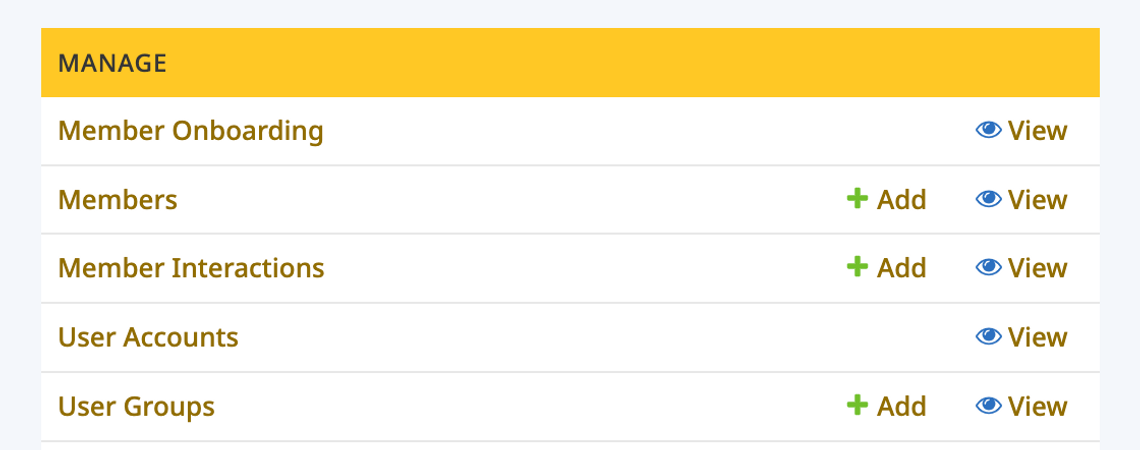
( Each platform might have a different name for "Member")
- Member Onboarding: members data around their onboarding or application journey.
- Member: members who have completed onboarding and their profile data.
- Member Interactions: member interactions around connections on the platform.
- User Accounts: complete overall view of every member's account information, Active status, data joined, last login information, etc.
User Accounts is one of the most useful view to generate reports on user account.
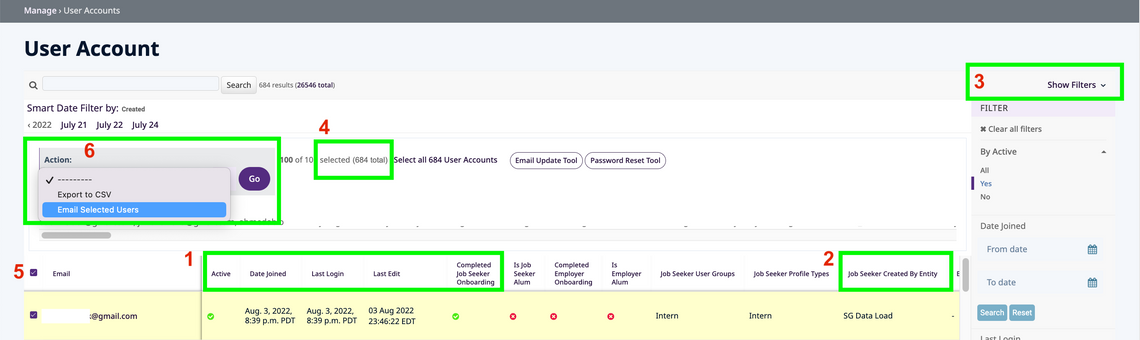
Item #1 & #2: How to read User Account View Labels
- Email: Unique identification of each user
- Active: whether the user has signed up or not
- Data Joined: date the user signed up
- Last Login: data the user last logged in
- Last Edit: data the user last edited his/her database entries
- Date Created: date the database entry is created. Usually this date is the same as Data Joined; however, in the case of Data Import, this date can be the date of the data import.
- Completed Member Onboarding: if this user completed onboarding process or not.
- Member User Group: User Groups this user belong to.
- Member Profile Type: Profile Type this user has.
- User Created by Entity: how is this user data entered to the platform, such as Through Onboarding, Through Data Import, Entered by Admin, etc.
Item #3: Use Filter to create specific User Account Reports
Click on "Show Filters" to display all the filter items. You then filter User Account by all the options listed under the filter, such as Active, Data Jointed, Last Login, etc.. almost all the fields display on the User Account View.
Item #4: Show the total user number. If Filters are selected, it shows the results by filters.
Item #5: You can select individual user using the checkbox next to each email; you can also select all users by clicking the checkbox on the top.
Item #6: Once you select users, you can use Action to either export the users to CSV, or email those users via ScaleGrowth Email Tool.
Related Guide: Learn how to export and download Member data.
