
Overview
The Member Directory in ScaleGrowth offers flexible layout options to help you display member profiles effectively. There are two key views you can configure:
- Card View – a compact, tile-based layout for quick browsing
- Detail View – a detailed layout for deeper context
Each view has its own way of selecting and displaying profile fields. This guide explains how to customize the Card View, and how it differs from the Detail View.

What Is Card View?
Card View displays member profiles in a streamlined format that prioritizes clarity and quick recognition. It supports a limited number of fields to maintain visual consistency and ease of scanning.
How to Customize Card View
- Enter Admin Mode.
- Navigate to the Directory Space.
- Click the Card View display icon.
- Click the pencil icon on each line of the card to select a field.
- Use the dropdown to choose a Profile Field (e.g. Tagline, Location, Role).
- Click Update to save your selection.
- Repeat for each visible row.
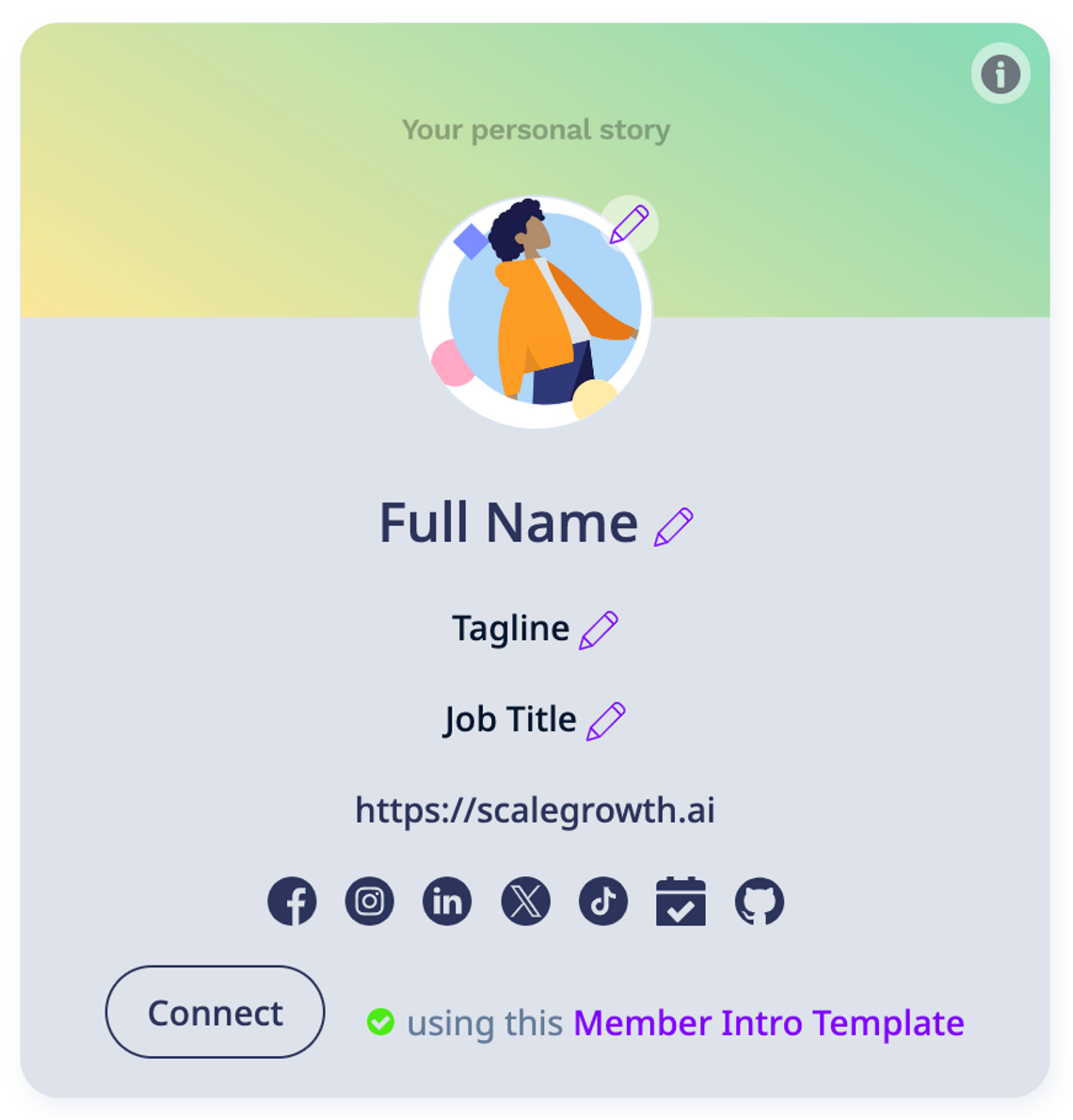

📌 Note: Card View only supports a few fields to maintain visual consistency. For richer member info, use Detail View as the default via the ⚙️ Settings icon in the top-right of the Directory.
What Is Detail View?
Detail View is shown when a member clicks into a profile. It displays extended profile data and is ideal for showcasing lived experiences, interests, and other custom fields.
How to Customize Detail View
- Enter Admin Mode.
- Navigate to the Directory Space.
- Click the Detail View display icon.
- Click Edit Fields & Search Filters.
- Select which Profile Fields to show and configure any filters.
- Click Save.
This layout is best for communities that want richer storytelling and personalized member insights.
Common Confusion: Card View vs. Detail View
If you're updating fields but don’t see them reflected in Card View, double-check your settings:
- Card View fields are edited within the cards using pencil icons.
- Detail View is edited via the Edit Fields & Search Filters panel.
Best Practice Tip
Use Card View to display quick-glance info like name, role, and tagline. Reserve Detail View for deeper fields that highlight what makes members unique.
Need Help?
Not sure which fields to use or how to structure your Directory for engagement? Reach out via your Success Center, or bring your questions to Office Hours – we’re here to support you!
Let us know what else you’d love to see in the Directory. 🚀
