
You have a few options for how you ask your users about their location in the Onboarding & Profile views:
Option A: Use a Smart Field Set to the Map Address View Mode
This will provide users with an embedded Google Maps widget where they can enter anything they want.
- Use a Smart Field for this data.
- Make sure to set it to the Map Address for the View Mode before launching your Onboarding or running the Data Load.
- The format of this new field is extremely forgiving:
It can be anything you can type into Google Maps that returns a search result.
Google Maps
https://www.google.com/maps
Find local businesses, view maps and get driving directions in Google Maps.
Examples include:
- an Exact Address
- a City name
- a Zip Code (which will show a highlighted area on the map)
- just the State or Country
- a Business
- a Landmark or a Point of Interest
- Latitude & Longitude coordinates (which you might sometimes get from a 3rd party export)
You essentially have the entire power of Google Maps at your fingertips for processing this data.
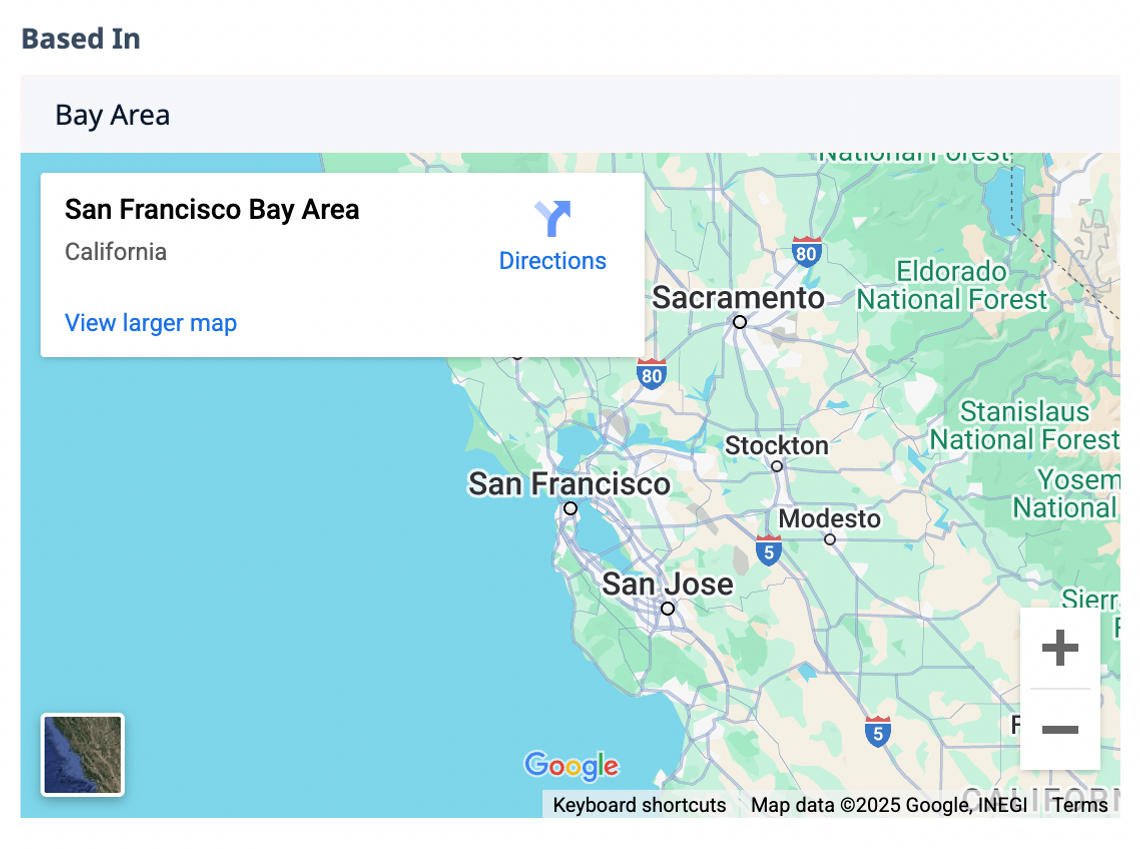
You also get a nifty Embedded Map widget in the users Profile and Micro-Page views, as well as Directory listings when in the Full Row View – including the following features:
- Zoom & Pan controls
- A shortcut to get Directions to the location
- Street View (helpful if users are visiting physically)
- A convenient way to pop out the full Google Maps experience in a new browser tab
- Reviews, if it's a business, a landmark or a point of interest
Here is an example of how "Bay Area" looks when entered or Data Loaded into the field:
The primary trade-off is if you use this field as a Search Filter, it is treated as text search due to it being so flexible.
For data reporting or analysis, you'll encounter variations in how the same place is called, such as "New York," "New York City," "NY," or "NYC," which can make it harder to track consistent data.
Option B: Use a City Selector Field with Optional State and/or Country Selector Fields
The City Selector is a special field that auto-completes and forces users to choose from a list of cities with an official population over 5k.
Our Smart Location field provides an auto-complete search for cities around the world with populations of at least 5,000 during Onboarding.
However, when you Data Load, the format is no longer enforced, so users can enter things like "Bay Area".
For example, if you Data Load example user Alice's profile with "Bay Area", it will appear exactly as entered in the Directory. However, note this:
- If Alice later goes in to update her profile, the Smart Location will reset to an empty input during editing.
- This is done to enforce the input of a valid city, as "
Bay Area" isn't a valid city name (with a population over 5k). - If Alice cancels the changes without saving, it will revert to "
Bay Area". - If she enters a valid city with a population over 5k and saves, the data will update to that valid city.
The main advantage of this approach is that it guarantees data consistency for Search Filters and data reporting or analysis.
The main trade-off is that the City Selector Field only includes cities with populations over 5k, so users in smaller towns or rural areas may need to select a nearby larger city instead.
Option C: Use a Smart Field Set to the Short Text Input View Mode for "City" with Optional State and/or Country Selector Fields
Example user Alice can enter anything she wants into the City field since it's just a text field.
This approach offers flexibility, as users can freely type their location without restrictions. However, it lacks validation or auto-completion for city names.
If you use this field as a Search Filters, it will simply perform a text search on it.
For data reporting or analysis, you'll encounter variations in how the same place is called, such as "New York," "New York City," "NY," or "NYC," which can make it harder to track consistent data.
Conclusion
This guide outlines three flexible options for collecting location data in your onboarding and profile views. Choose the one that best fits your needs!
