
Renaming Custom Text on ScaleGrowth is very easy.
In most cases, you can use our contextual Settings menu to do this.
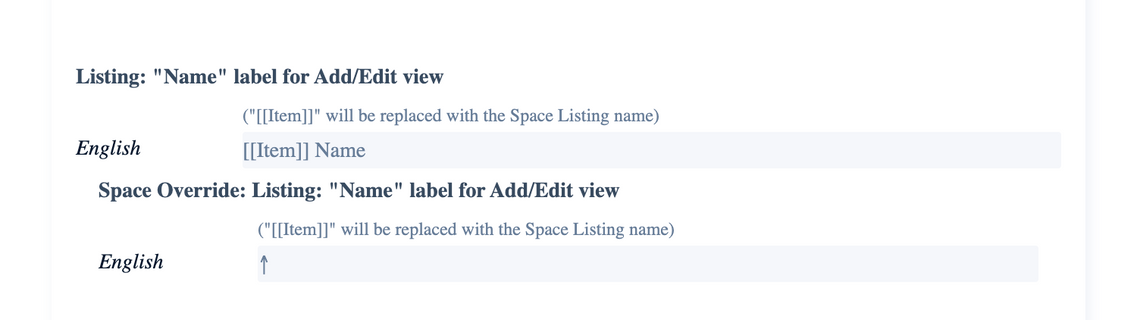
For example, let's say you are looking at a Space and want to rename the "Name" label for the Add/Edit view.
- Enter Admin if you aren't already
- navigate to the Space you want to modify
- click Settings in the top right
- scroll down to find the Text & Languages section
- this menu will show you all the relevant pieces of Text you can Customize for this Space
- look for the text you want to replace
Hint: you can use your browser's "Find on page" functionality to look for the current version of the text – it should show up as the default placeholder text in here.
But what about text that's not part of a Space – such as the global "Log Out" menu name for example?
These live in a central place:
- Enter Admin if you aren't already
- navigate to Settings > Text & Languages
- look for the text you want to change there
Finally, what about translations to other languages? You can add support for your favorite languages in the same place:
- Enter Admin if you aren't already
- navigate to Settings > Text & Languages
- look for Number of Languages in there
- you will note it says 1 by default – that's English
- change the number to enable additional language support
Once you do, all the Custom Text menus above will also allow you to add translated versions for your extra languages!
