
ScaleGrowth has very powerful Custom Forms. You can use them to create different custom Marketplaces using Custom Listing Templates, automated Surveys and Ratings workflows, or collect extra Event RSVP info.
To Create or Edit a Custom Form:
- Log into ScaleGrowth with your Admin or Moderator account.
- Enter Admin if you aren't already.
- Head to Form Builder
- Here, you can see the Custom Forms that are setup on your platform.
- Note that depending on your use case we may have already created a library of templates for you:
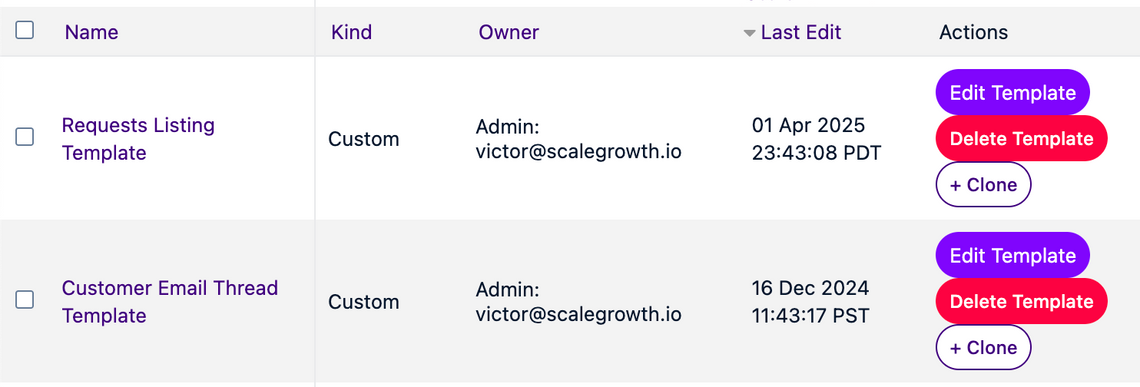
- To modify an existing form, click on its Name.
- Or to create a new one, click the + Clone button under Actions column.
- Either way, you will be taken to our Custom Form editor:
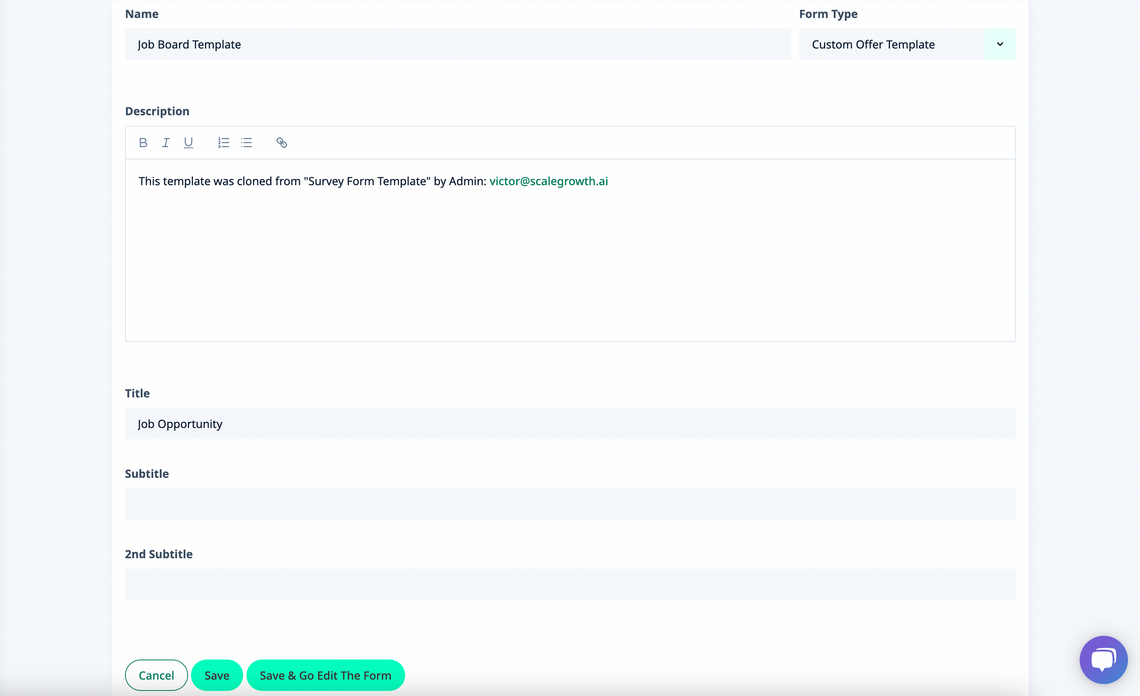
- Here, you can Name your Custom Form and give it an internal Description.
- You can also customize the Title and optional Subtitle fields for this Custom Form.
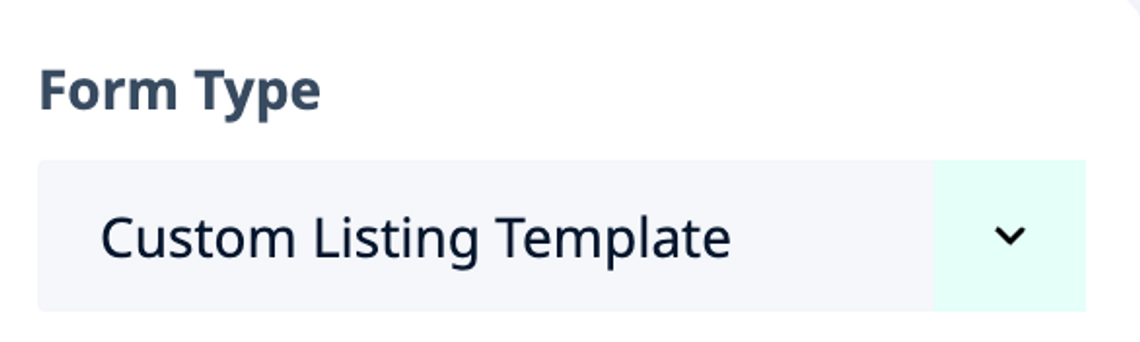
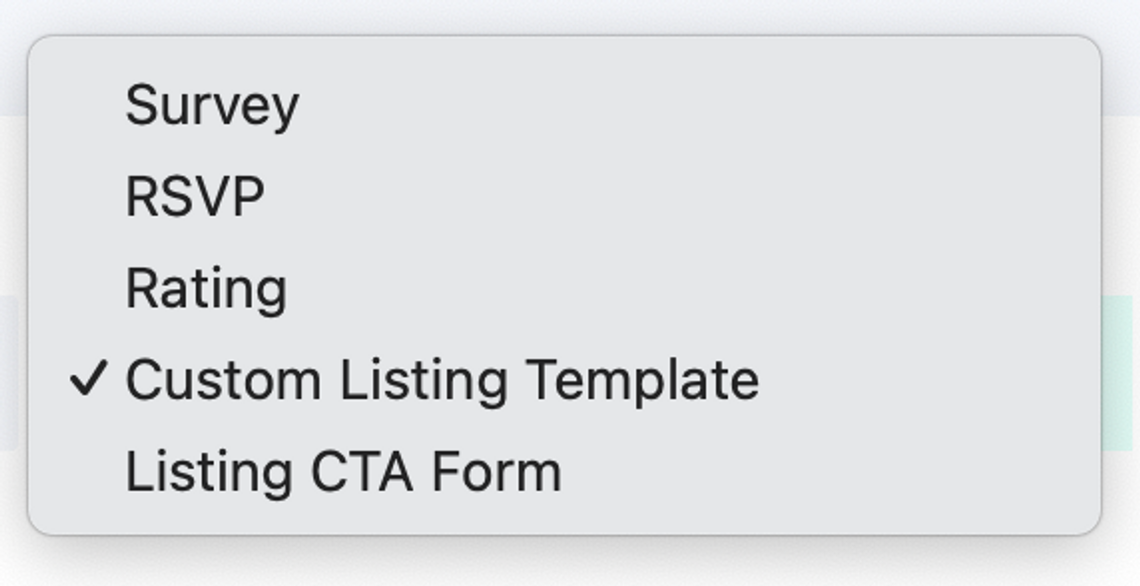
- Finally, the Form Type controls which type of Custom Form this is:
- Click Save & Go Edit The Form to be taken to the Form Field Editor:
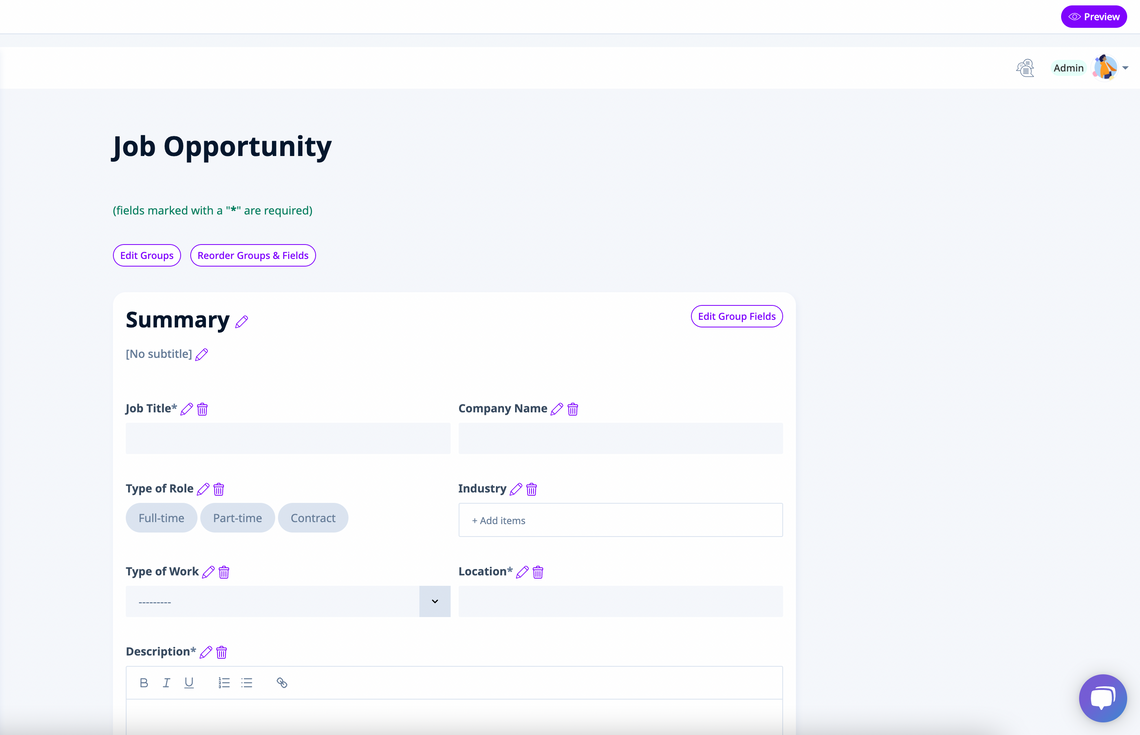
- Here, you can edit the Form Fields by clicking the edit pencil next to each one.
- You can also add new fields by clicking the plus icon, or remove them by clicking the waste-bucket one.
- Finally, you can update the visual layout via Edit Groups or Reorder Groups & Fields at the top.
- You can also use the Preview / Edit Fields toggle in the top right to swap between the Preview mode and the Field Editor.
- All done!
