
ScaleGrowth has an extremely powerful User Group engine that lets you create custom User Groups for just about anything. And it's super quick & easy to set up!
To Create a User Group:
- Log into ScaleGrowth with your Admin or Moderator account.
- Make sure you are in your Admin view – you can use the Switch Role menu to get there.
- Head to Settings → Configuration → User Groups
- Here, you can see the User Groups that are setup on your platform.
- Note that a default User Group for your members has already been created:
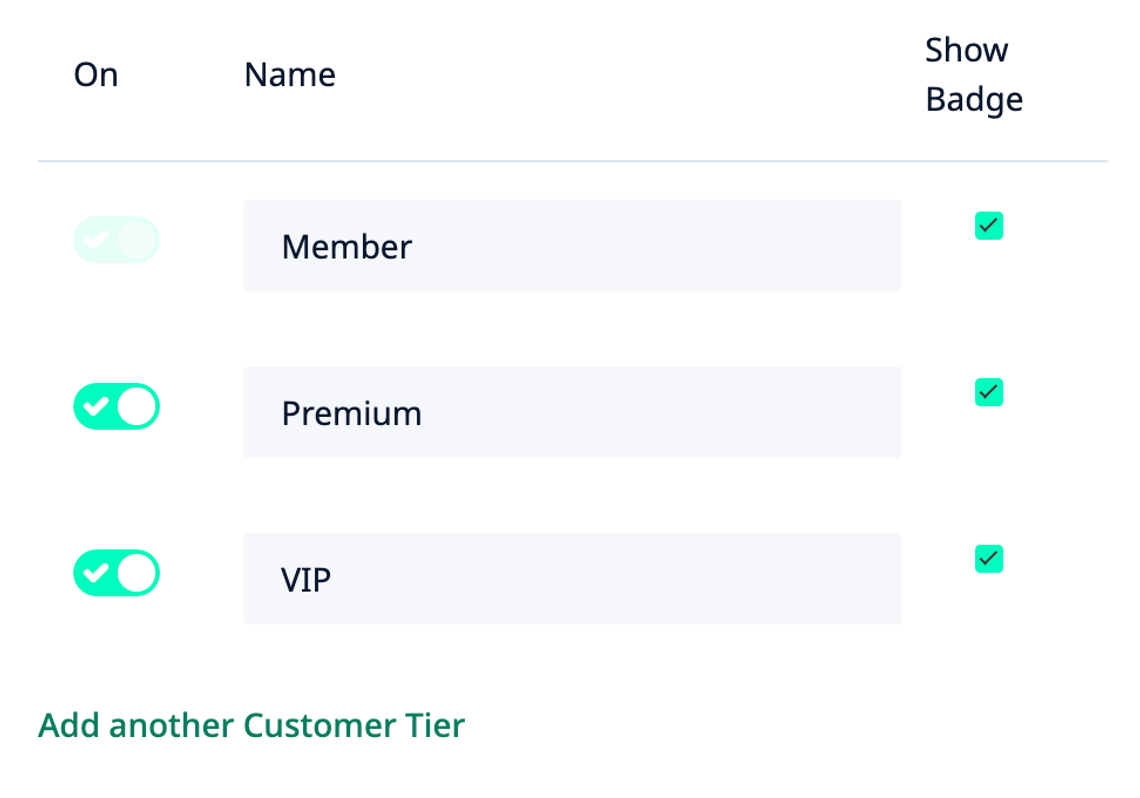
- To add a new User Group, click Add another [[Member]] Tier *
* – [[Member]] will be replaced with what you call your Members here
- Give your new User Group a Name and make sure the switch in the On column is turned on.
💡💡💡 If your community platform is already live and has many active users, you can initially keep the User Group Off while configuring things or preparing for a marketing launch. Just don't forget to flip it back On when ready to go. 💡💡💡
- Click Save.
All done!
