
This article provides clarity on the settings related to the Custom Matching Programs, including configuring User Groups that participate in them, setting up the Frequency & Timing of Recommendations, and establishing optional Program Limits.
Using Custom Matching Programs
To set up custom Recommendation Programs:
- Enter Admin if you aren't already
- Go to Settings > Configuration > AI Matching & Recommendations
- Look through the available programs, including
[[Members]]matching other[[Members]],[[Members]]matching[[Providers]], and[[Providers]]matching other[[Providers]]
💡 Please note that [[Members]] and [[Providers]] will be replaced with whatever custom names you give your Members and Providers under Settings > Brand & Design > Platform Naming
- Find the Program you want to set up
- and enable Set Up Custom Matching Program Rules for it
Here is an example for [[Members]] matching [[Providers]] where Providers are called "Companies":
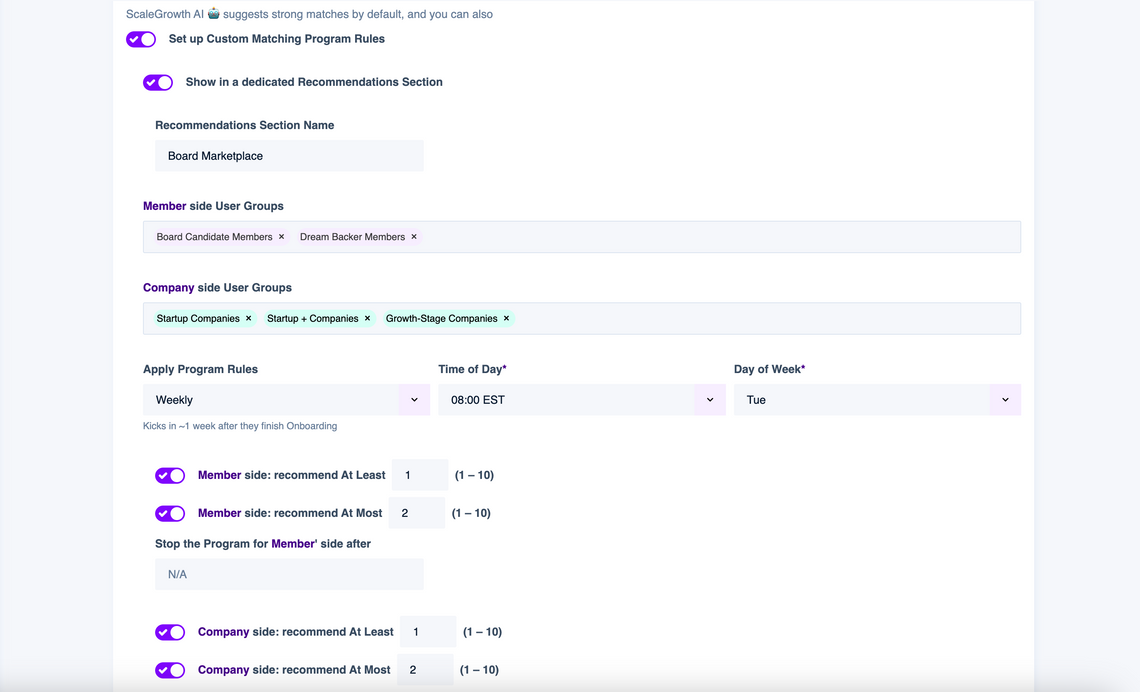
Note that you can also set it to Show in a dedicated Recommendation Section:
- Turning this on will create a dedicated Tab under Recommendations view for the user to see their Program Recommendations
- Turning this off will simply add all the Program Recommendations to the corresponding Tab that includes Generic Recommendations that our engine might recommend Outside the Program.
Program User Groups
You can tell the Program to only match specific User Groups on either side. This way, you can craft special Programs that only apply to certain members. For example, you may want to run a Mentorship Program for which only certain VIP User Groups are eligible.
The Program settings will give you two fields for each side of the program. In the example screenshot above, these are Member side User Groups and Company side User Groups ("Company" being the name for the Provider)
Simply select the desired User Groups on each side.
Recommendations Timing and Frequency
The Recommendations Program allows users to receive personalized recommendations based on specific rules. Here's a breakdown of the timing and frequency options:
1. Onboarding Completion:
- Recommendations are provided approximately one week after users finish onboarding (and are accepted if admissions are applicable).
2. Weekly Basis:
- If set to Weekly, users receive a specified number of recommendations every week.
- For example, if every member is set to receive a minimum of 2 recommendations weekly, they get 2 new recommendations every week.
3. Monthly Basis:
- If set to Monthly, users receive a specified number of recommendations every month.
- For instance, if every member is set to receive 2 recommendations monthly, they get 2 new recommendations each month.
Schedule & Program Limits
Similar to Weekly and Monthly Digests, administrators can specify when recommendations are delivered. For example:
- "Everyone gets weekly new recommendations on Sunday morning."
Understanding Program Limits
The optional Program Limit applies to Weekly or Monthly Programs and represents the total maximum recommendations a user can receive from the program. Here's how it works:
Example:
A Program is set for every member to get 2 Recommendations Weekly and set to Stop after 9 total Program Recommendations:
2Program Recommendations in the first week,2Program Recommendations in the second week,2Program Recommendations in the third week,2Program Recommendations in the fourth week,1Program Recommendation in the fifth week (to reach the limit),- Program Recommendations stop as the user has reached the total limit of
9.
To configure the optional Program Limit, simply enter the value under Stop the Program for Member's side after
Summary
This knowledge base article provides a comprehensive understanding of the Recommendations Program settings, covering timing, frequency, specifying schedules, and Program Limits. Administrators can use this information to tailor their Recommendations Programs to meet the specific needs and preferences of their users.
If you have any questions on setting up custom Matching Programs, please don't hesitate to ask our team in your Success Center.
