
Tag sets in the ScaleGrowth platform play a vital role in helping users navigate your platform, discover content, and find what they are looking for effectively. This article provides best practices for utilizing tag sets and offers guidance on how to set them up to create a seamless user experience.
By considering the user's perspective and tailoring tag sets to your specific needs, you can enhance content discoverability and improve user engagement.
Why Use Tag Sets?
Tag sets offer several benefits for your ScaleGrowth platform:
- Improved Experience: Tag sets enable users to easily navigate and find relevant content within your platform.
- Customization Options: You have the flexibility to create up to six different types of tag sets tailored to your specific requirements.
- User-Centric Design: Thinking from the user's perspective helps you in designing an intuitive and user-friendly platform experience.
Setting Up Tag Sets:
Follow these steps to set up tag sets in your ScaleGrowth platform:
- Access Settings: In your admin portal, navigate to "Settings" and click on "Configuration."
- Choose Platform-Wide Tags: Select the option for "Platform-wide tags" and proceed to rename it according to your platform's requirements. Create the appropriate categories that align with your platform's content structure. This ensures logical grouping and easy discovery.
- Create Labels: Create clear and descriptive labels for each tag within the tag sets. These labels should accurately represent the content they are associated with.
- User-Generated Tags: Decide whether to allow members to add their own tags or limit it to predefined options based on your platform's needs.
Enabling Tags to your Space
Once you configured your tags, you can access the Platform-wide Tags settings and select which tags to display in your Space. Follow these steps:
- Navigate to Your Space: While viewing your Space, click on the "Settings" option located in the top-right corner.
- Show Platform-wide Tags: In Show Platform-wide Tags for this Space, choose the tags that are most relevant to your Space's content.
- Choose filters: in Show default Search Filters for this Space, choose the fields that you want to enable as filters for users in your Space. Carefully consider which fields are most useful for users to filter content.
Example: ScaleGrowth's Knowledge Base Use Case
In ScaleGrowth's Knowledge Base, we utilize tag sets for resource type, business topics, and platform topics to streamline content organization.
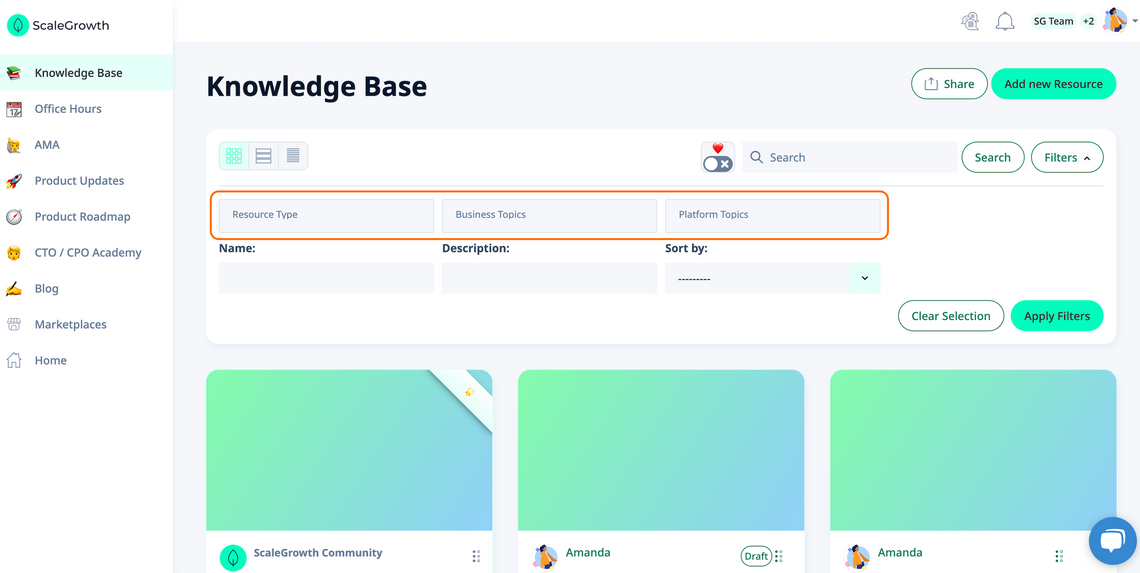
By effectively utilizing tag sets in the ScaleGrowth platform and following the best practices outlined above, you can enhance user navigation and improve content discoverability.
Taking into account the user's perspective and customizing tag sets to fit your platform's needs will result in a more engaging and user-friendly experience for your members. Empower your users to find relevant content easily and make the most of your ScaleGrowth platform's capabilities.
