
Overview
To receive email notifications about new content (posts, resources, listings, etc.), two things must be configured: relevant email templates must be enabled, and the user’s notification settings must allow it. This guide explains how both levels work together and how default settings are applied.
How Notification Delivery Works
In order for a user to receive a specific email notification–whether immediately or as part of a digest–both of the following must be true:
1. The Email Template is Enabled
Platform Admins must enable the relevant email template that triggers notifications for a given action or content type. These may include:
- New forum posts
- New resources
- New marketplace listings
- Mentions or replies
- Weekly or monthly digests
📍 Navigate to:
Admin → Email → Email Automation → Select Workflows & Notifications or Digest & Recurring Emails
👉 Read more: Guide to ScaleGrowth Email Automation Tool
Without enabling the template, the platform will not send related emails to anyone–regardless of individual user settings.
2. The User's Notification Settings Allow It
Each user has control over their personal email notification preferences, choosing how and when to receive updates:
- Immediate notifications (e.g. mentions or new posts)
- Digest summaries (daily, weekly, or monthly)
- Or turning certain notifications off entirely
📍 Users can adjust their settings at:
Avatar Dropdown (top-right) → Email Notification Settings
If a user disables notifications for a certain type of content (e.g. new posts), they will not receive the emails–even if the email template is enabled on the platform.
Understanding Platform Default Notification Settings
ScaleGrowth allows Admins to define default preferences that apply to:
- New users
- Existing users who haven’t customized their settings
How Defaults Work:
- If a user has never saved their email notification settings, they will use the platform default.
- If a user has saved their preferences at least once (even without changes), the platform will respect those personalized settings going forward.
📍 To set or update defaults:
Avatar Dropdown (top-right) → Email Notification Settings → Click the ⚙️ Setting (top-right above Avatar)
Think of It Like LinkedIn
ScaleGrowth’s system follows the same model used by platforms like LinkedIn or Facebook:
- Users can choose what types of notifications they want to receive
- Admins manage which email templates are active
- The two layers (template + user preference) are connected under the hood by trigger events
This keeps user experiences personalized, while giving Admins full control over which actions trigger communication.
Summary
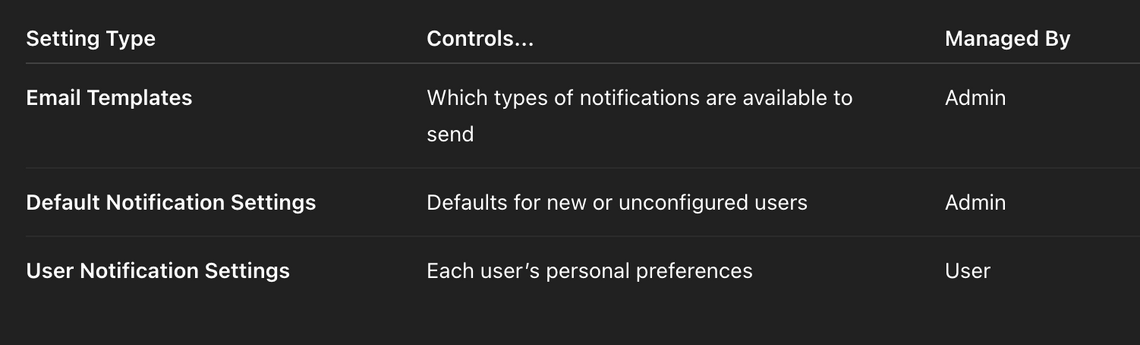
Common Use Case
If a user isn’t receiving expected notifications:
- Admin: Confirm the relevant email template is enabled
- Admin: Check default email notification settings
- User: Check their individual notification preferences
Best Practice
To streamline onboarding and engagement:
✅ Keep essential templates enabled (e.g. new post, mention, digests)
✅ Set defaults thoughtfully based on your community’s needs
✅ Encourage users to review and update their preferences
Need Help?
Still unsure why a user isn’t getting notified? Reach out via your Success Center, or join one of our weekly Office Hours to review your setup live with a team member.
