
This guide talk through setting up member Profile Micro Page for others to see.
Please refer to Private vs Public Profiles to learn about the different types of Profile views that ScaleGrowth offers.
To get started:
- Enter Admin and head to your member Directory
- click on the heading link for any of the Directory Listing cards in there

- it will open the Micro Page for this member in a new tab
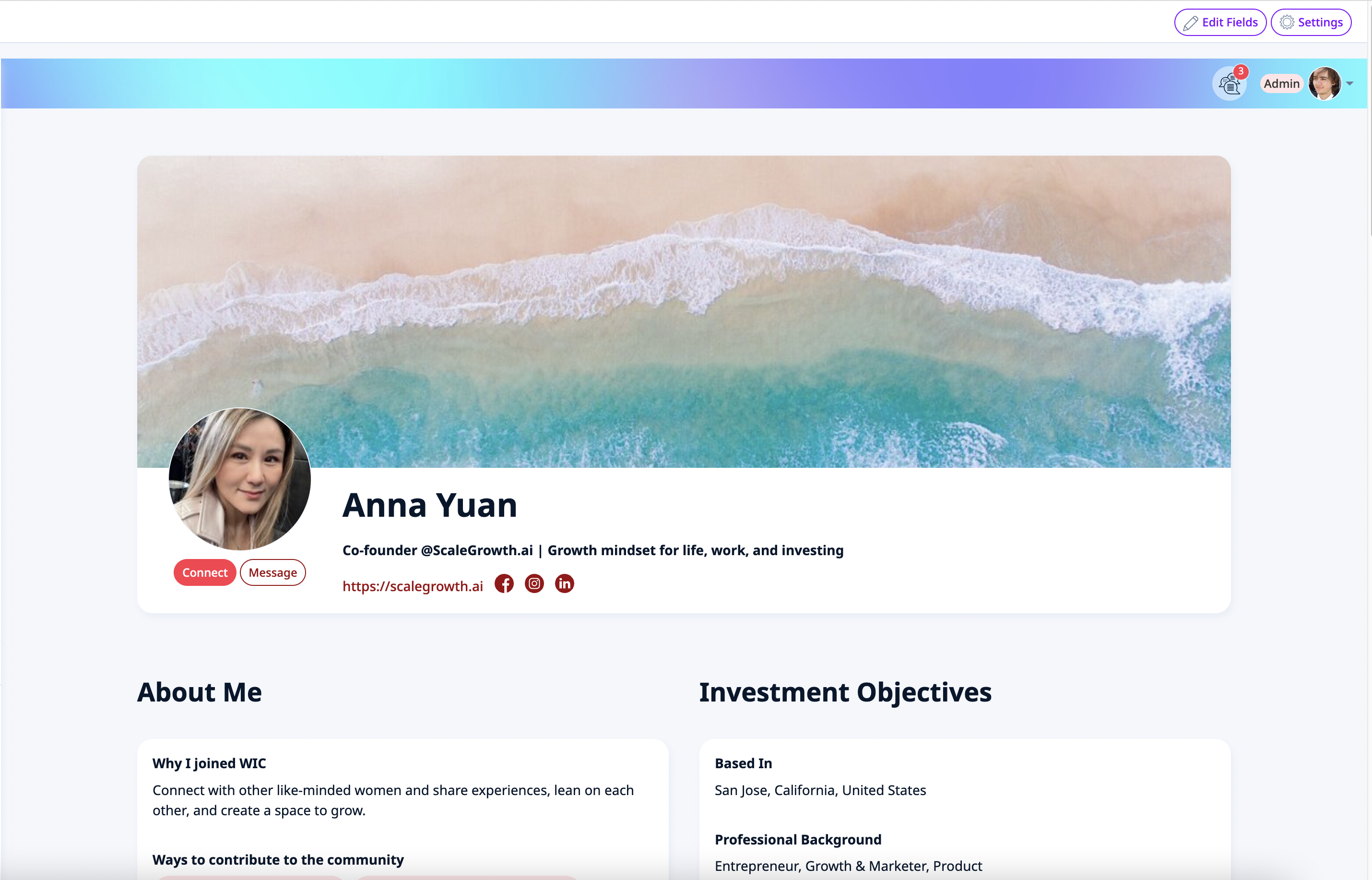
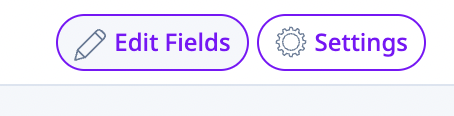
- click the Edit Fields button in the top right corner
- you will see the various Editor controls appear (in purple below)
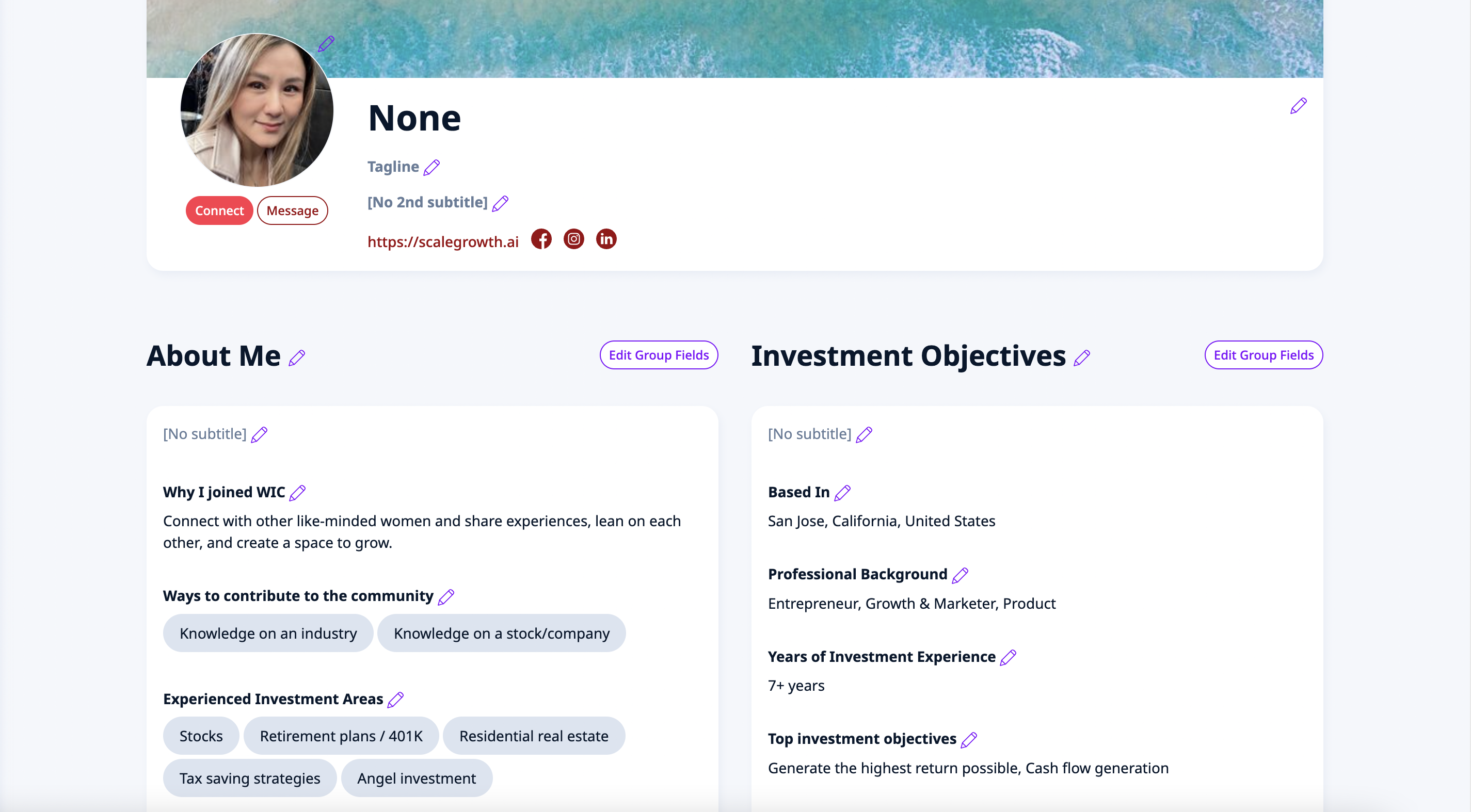
here, you can do a couple of things...
- click the Edit Group Fields button to select which of the Profile fields do you wish to show up on the Micro Page version
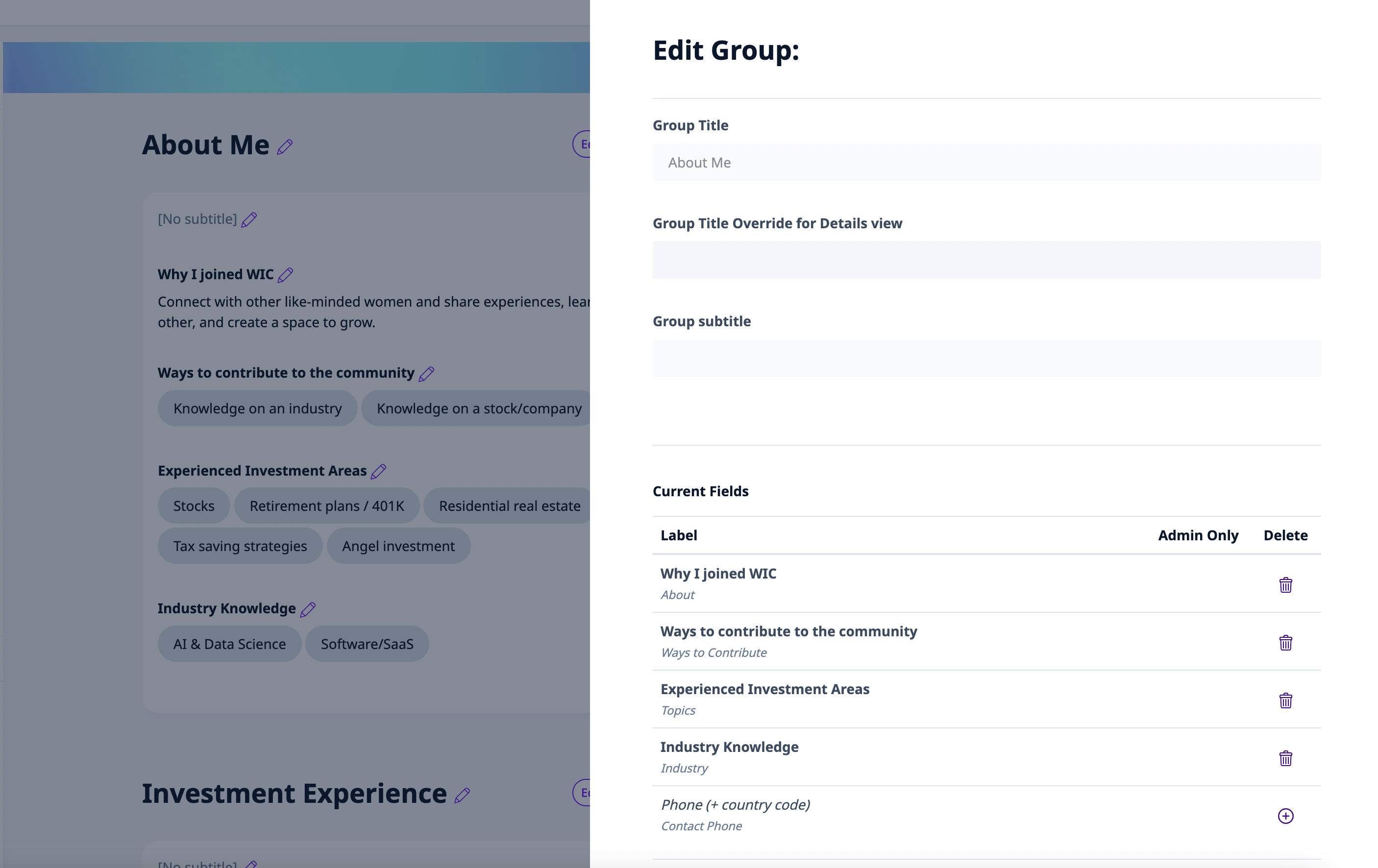
- you can also override the Group Title and Subtitle using this menu
- this is commonly used when you wish the member's own Profile to speak to them in 2nd person while the public Micro Pages to speak in 3rd person
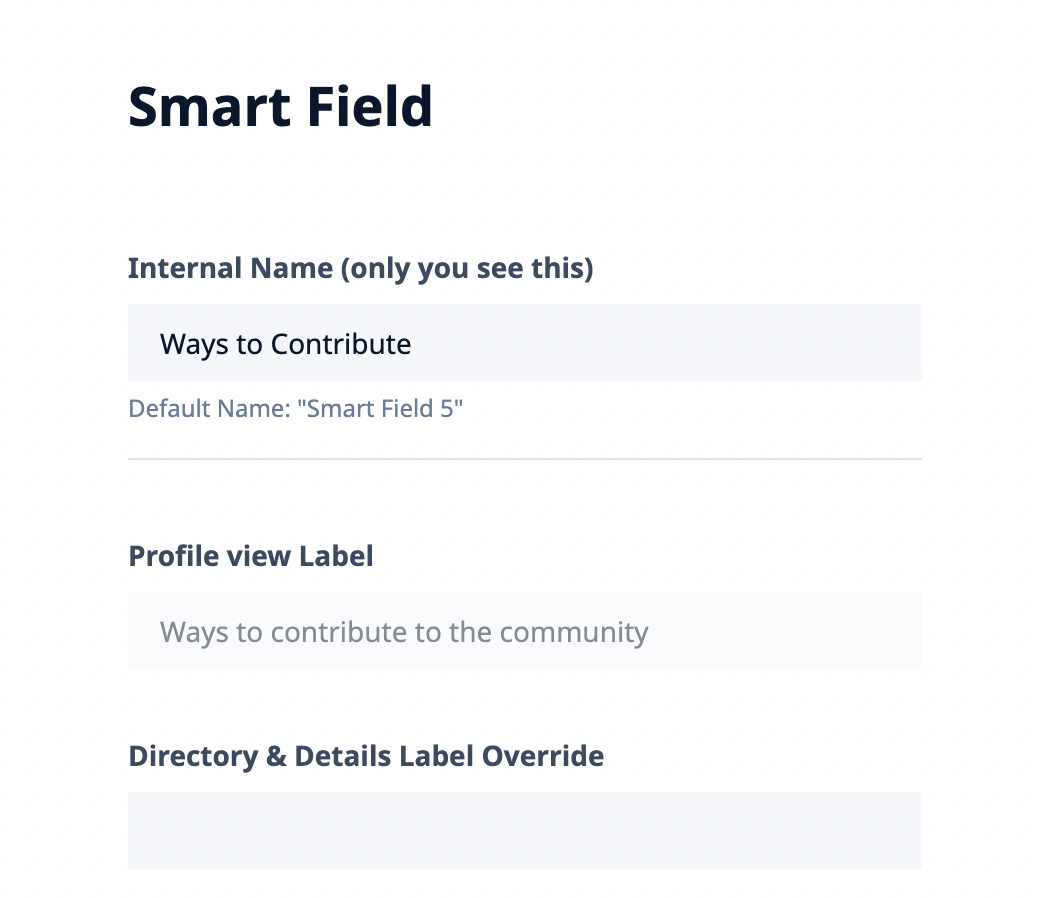
- similarly, you can click the individual pencil icon next to each field if you want to override the label in the Directory & Micro Page views
- note that each field also has a convenient Internal Name that you can set to easier match the same Smart Fields used across different views
These Micro Pages also have a dedicated URL link and include a nifty Activity Feed of everything related to this member.
If you wish to setup a public-facing Directory, these can also be made Public on the internet – and worry not, every piece of content they link to will double-check its own access permissions and ask the visitors to Sign Up and/or purchase a Membership as you desire.
To edit access permissions for the Micro Pages on your Platform, click the Settings button in the top right corner:
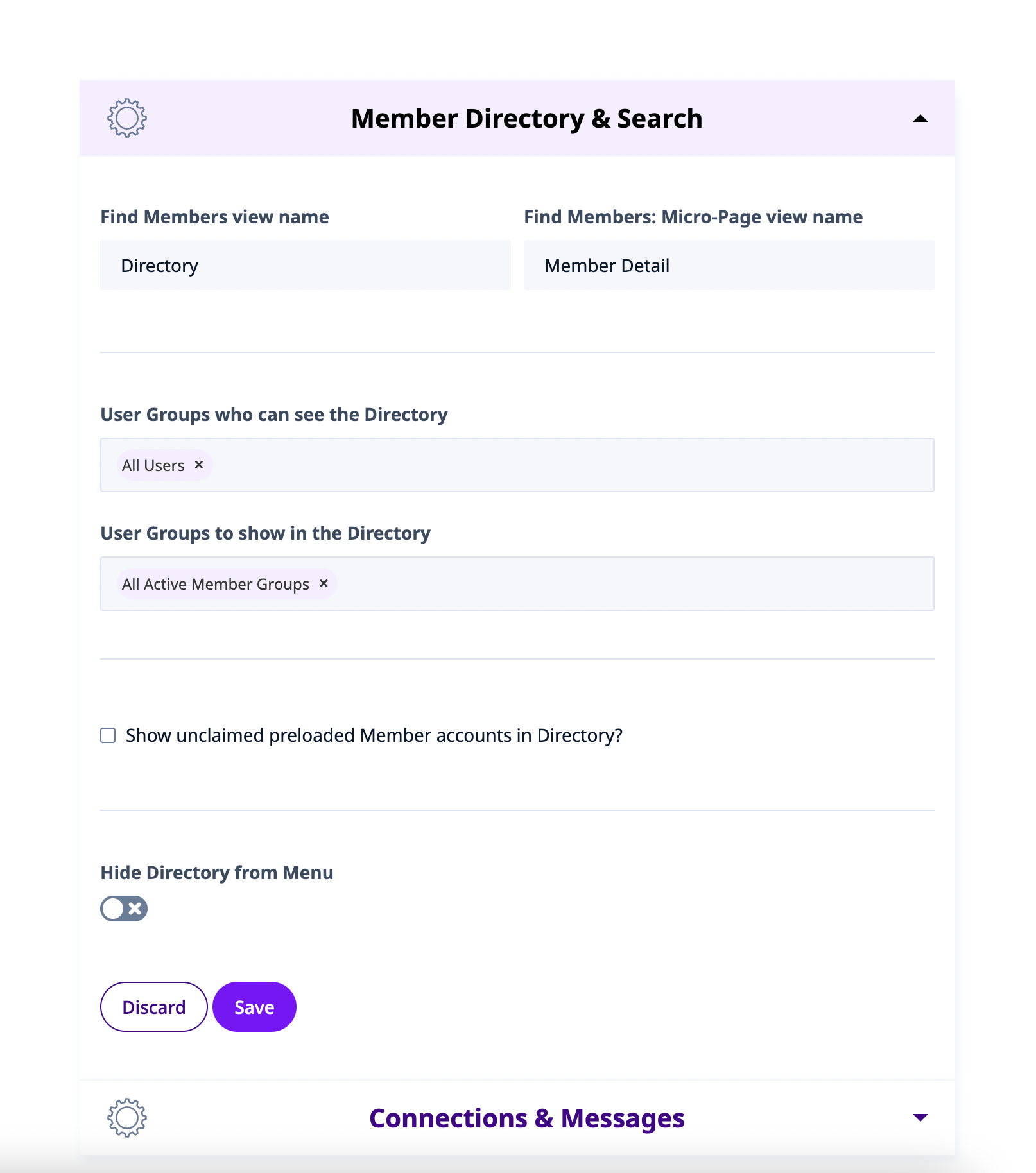
As you can see here, all Micro Pages will follow the same access settings that you set for your Directory.
