
Introduction: ScaleGrowth continuously strives to enhance user engagement and interaction within various spaces. Our latest feature update allows you to effortlessly turn on or off comments for a range of content types, including Forums, Events, Resources, and Marketplace listings. This guide will walk you through the simple process of enabling comments in your desired Space.
Steps to Enable Comments:
1. Navigate to Your Desired Space:
Begin by selecting the Space where you want to enable comments. Spaces in ScaleGrowth are versatile areas where specific type of content can be posted and interacted with.
2. Access Settings:
In the upper right corner of your Space, you'll find the "Settings" option. Click on this to access various configurable aspects of your Space.
3. Enable Comments:
Within the "Settings" menu, locate the section titled "Space." Here, you'll find an option named "Enable UI Elements for this Space." Click on the dropdown menu associated with it. From the dropdown options, select "Comment." This action enables the comment feature within this Space.
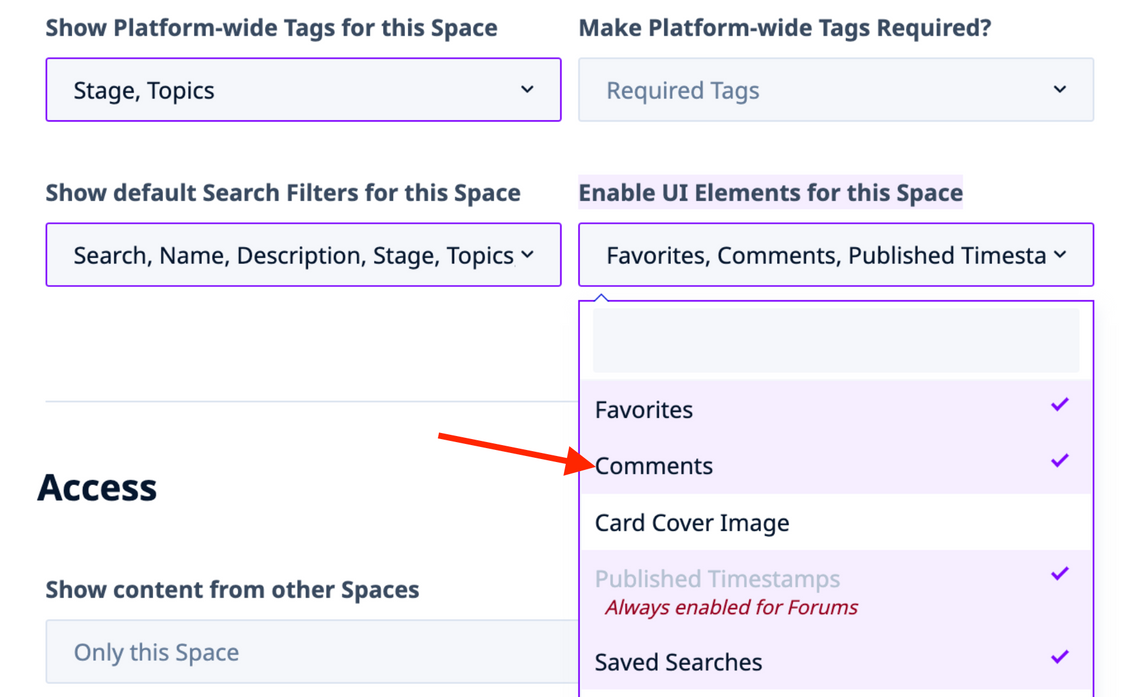
4. Save Your Changes: After selecting "Comment" from the dropdown menu, ensure you save your changes. This will activate the commenting feature for your Space.
Benefits of Enabling Comments:
Enabling comments in your Example User Group Space can significantly enhance user interaction and engagement. It allows members to:
- Share thoughts and feedback on various content types.
- Engage in discussions, fostering a sense of community.
- Provide valuable insights and contributions to forums, events, resources, and marketplace listings.
Conclusion:
By following these straightforward steps, admins can easily facilitate discussions and interactions within their respective Spaces. This feature is designed to make your Example User Group more dynamic, engaging, and interactive, encouraging members to actively participate and contribute to the community.
For further assistance or queries regarding this feature, feel free to reach out to our support team. Your active engagement in the ScaleGrowth community is invaluable to us!
