
ScaleGrowth allows you to create different Spaces to better organize your content and member access permissions. And it's super quick & easy to set up!
To Create a Space:
- Enter Admin if you aren't already
- Head to Settings → Configuration → Spaces
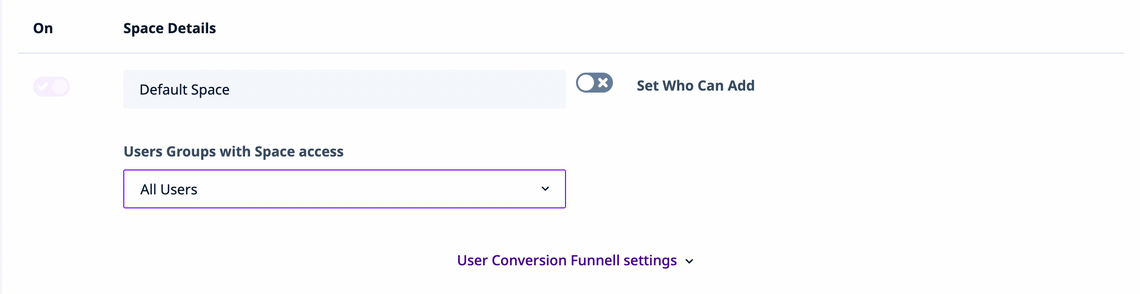
- Here, you can see the Spaces that are setup on your platform.
- Note that a default Space for your members has already been created:
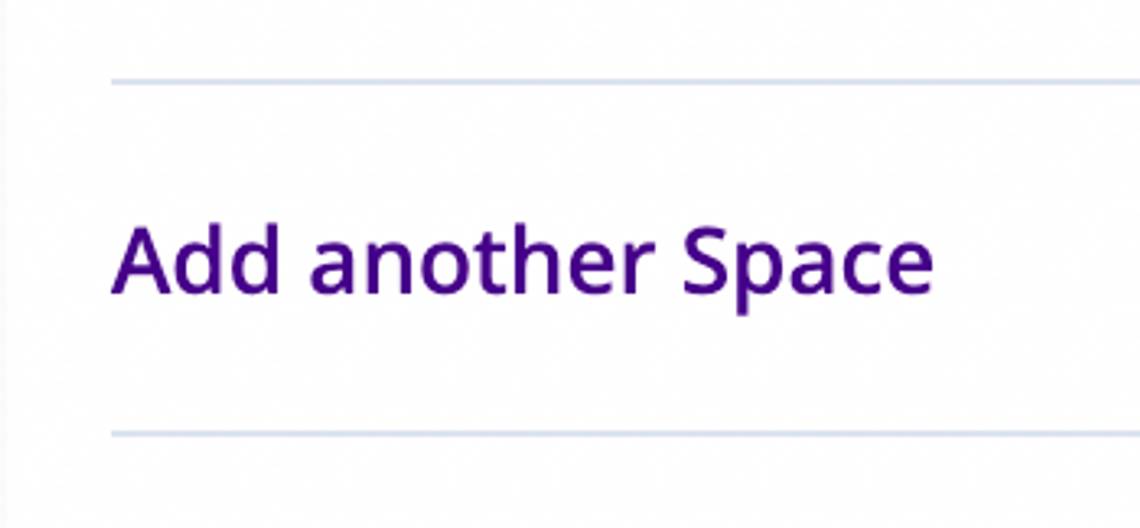
- To add a new Space, click Add another Space
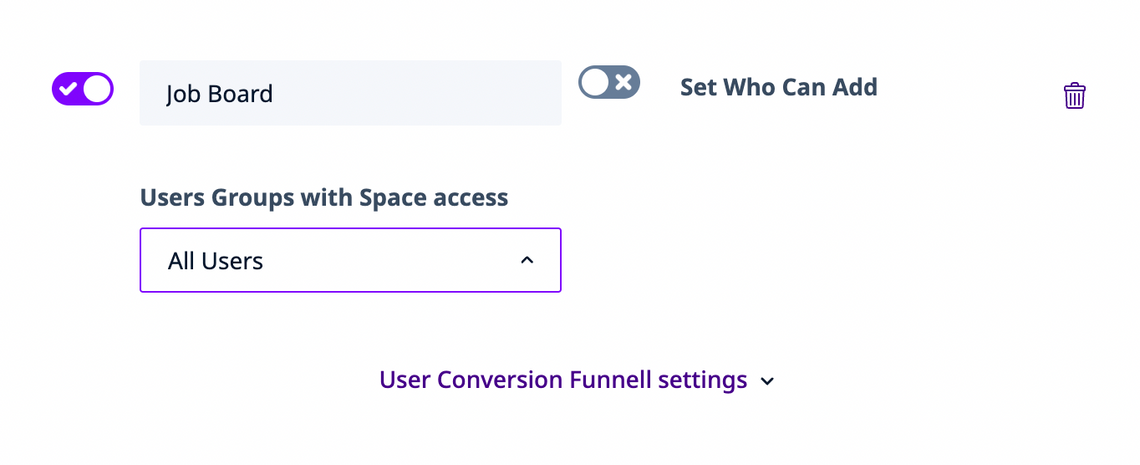
- Give your new Space a Name and make sure the switch in the On column is turned on.
- Select which User Groups should have access to this Space under User Groups with Space access
- Optionally, you can turn on the Set Who Can Add option to select the User Groups who can Add Content:
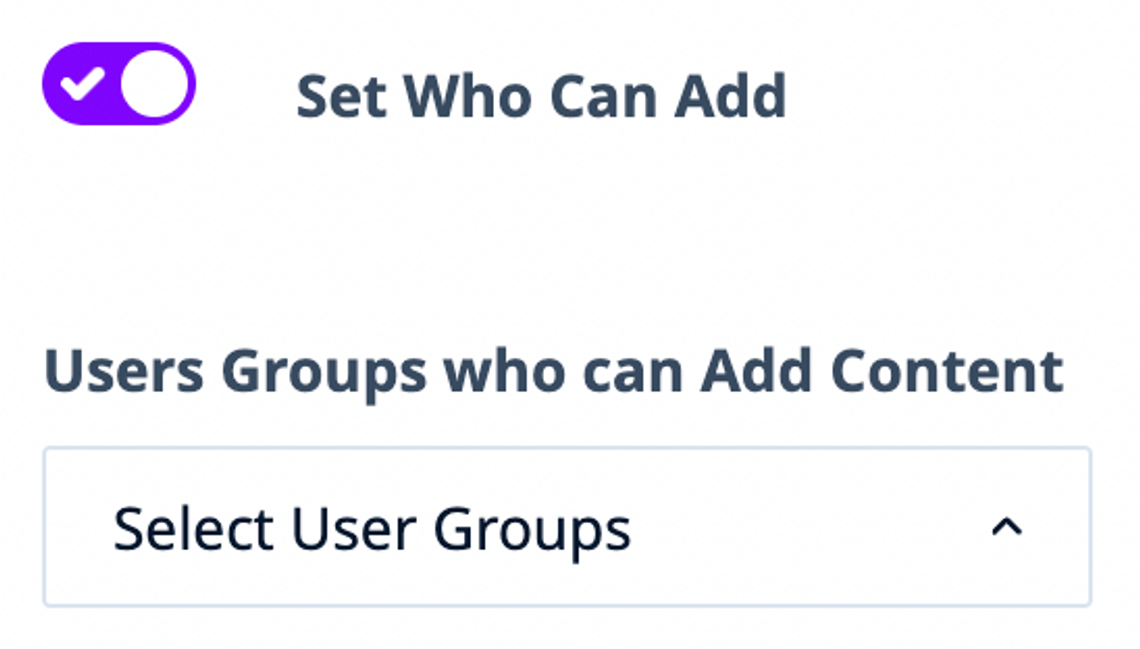
💡 If you do not manually Set Who Can Add, all User Groups with Space access will be able to Add Content for this Space by default.
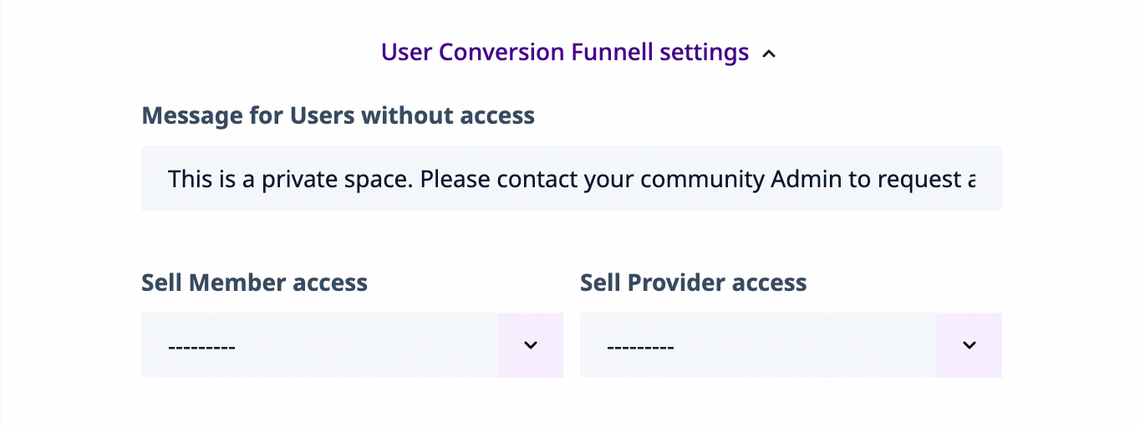
- You can also expand and edit the User Conversion Funnel settings.
- Here, you can customize the Message for Users without access
- You can also Sell Member / Provider access – this will display a button to take the user to a Membership Subscription of your choosing when they don't have access to this Space.
- Click Save.
All done!
