
ScaleGrowth has a super powerful feature that lets you create multiple Listings Spaces for your platform – with custom Data Models for different Spaces.
To Create a Listings Space:
- Make sure you turn on the Listings Module.
- Log into ScaleGrowth with your Admin or Moderator account.
- Enter Admin if you aren't already.
- You will need to choose a Space to host your new Marketplace.
- Head to Settings > Configuration > Spaces to set one up.
- Make sure the Space is enabled and set to use the
ListingsModule. - Please see our Create a Space guide for more info.
- In the example below, we are creating a Job Board:

- Next, we'll set up a custom Data Model for your Marketplace.
- To do this, you will want to associate your Listings Space with a Listing Template.
- You can create and modify Listing Templates under the Custom Forms library.
- Please see our Create a Custom Form guide for more info.
- Head to your Listings Space.
- Click Settings in the top right.
- Scroll down to the Listing Templates section.
- Make sure that Select Listing Templates for Spaces is enabled.
- Add a mapping between one of you Listing Templates and your Listings Space.
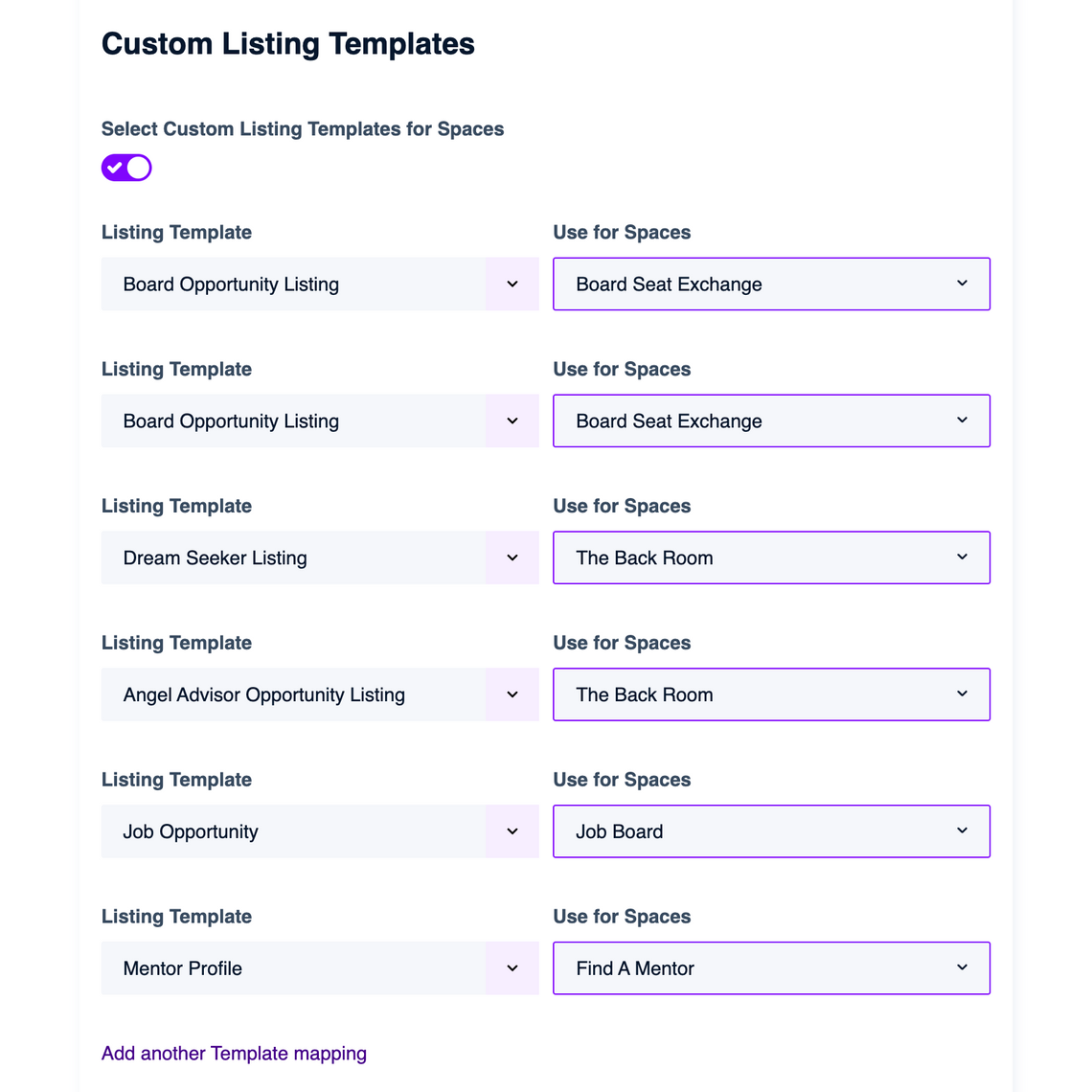
💡Yes, you can absolutely set up multiple Spaces with different Listing Templates – just click "Add another Template mapping"
- Click "Save"
All done!
