
To configure custom Directory Profiles:
- Log into ScaleGrowth with your Admin or Moderator account.
- Make sure you are in your Admin view – you can use the Switch Role menu to get there.
- Head to Directory *
* – for 2-Sided Marketplaces or Mentorship Programs, there will be two sub-sections under Directory, one for your Members and one for your Providers; please select the side you wish to configure.
- Click on the Name of any Profile in your Directory
💡💡💡 ScaleGrowth also provides a nifty Example Profile that has all the enabled fields filled out with example data for your convenience. It does not matter if you choose the Example Profile or a real Profile for this step. 💡💡💡
- Click on the Edit Fields button in the top right

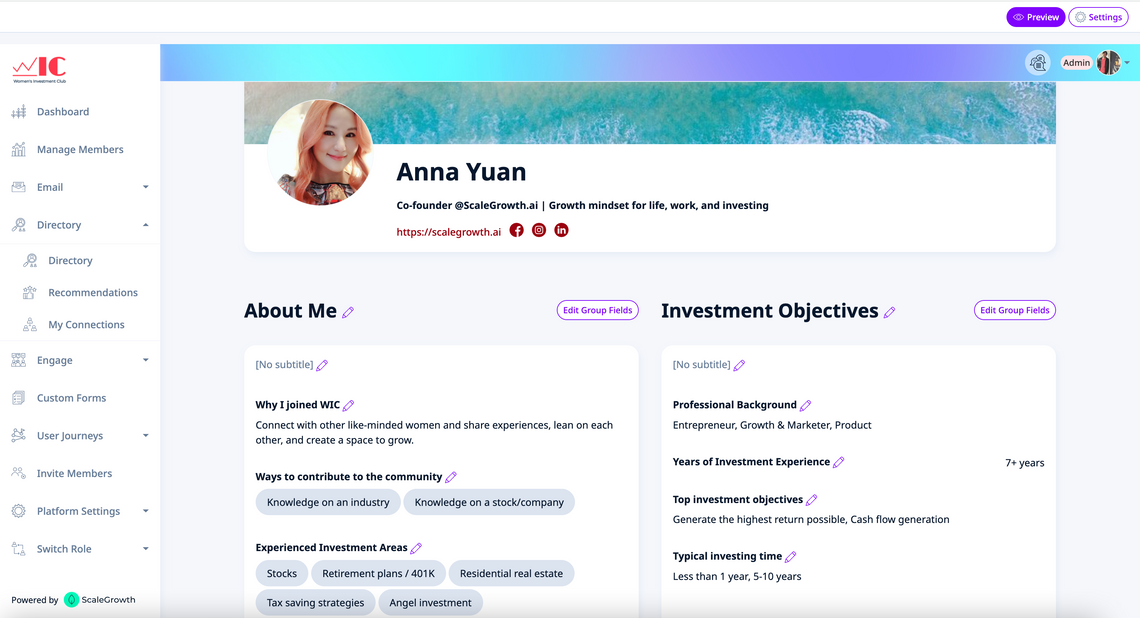
- You will now see the Directory Profile update with a bunch of Edit Controls
- For example, see all the Indigo color controls here:
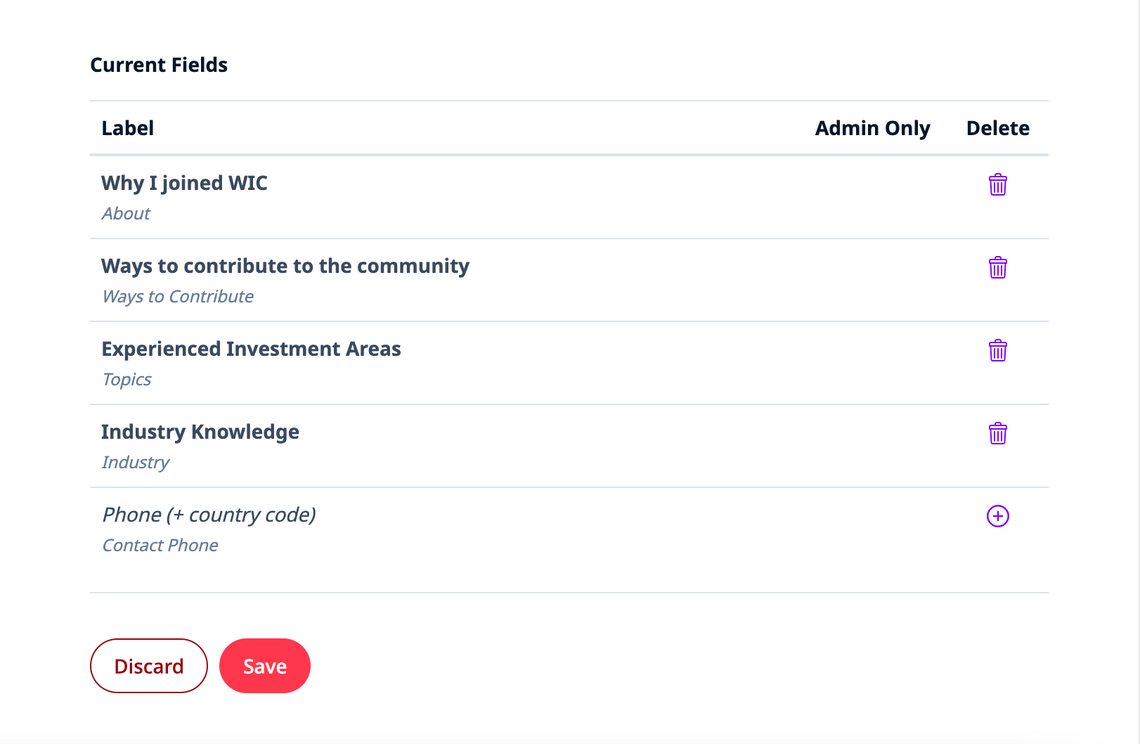
- Click on Edit Group Fields to select which Profile Fields will show up for Directory Profiles that other Members can see:
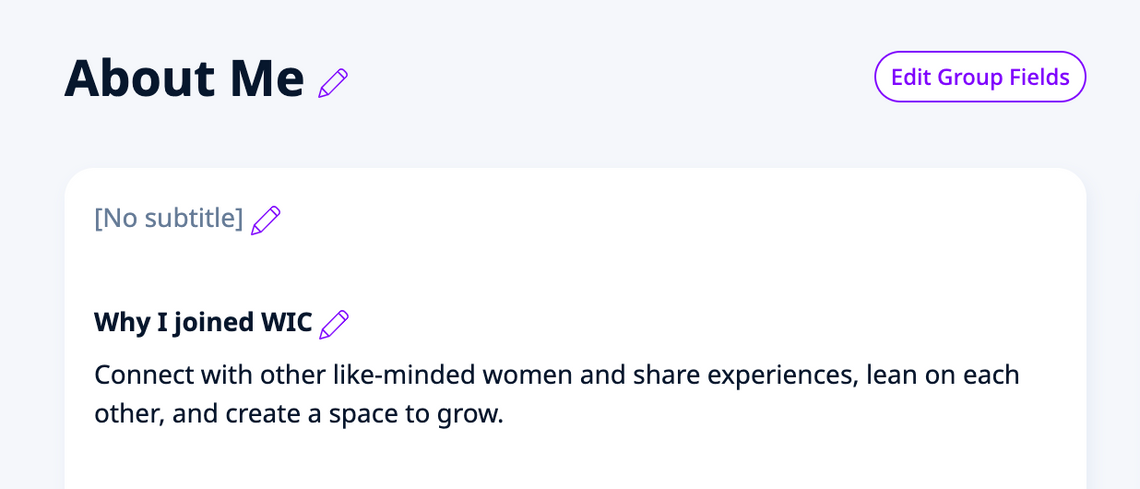
- You can also click on the individual Edit Pencil Icons to set different labels for Fields or Groups for Directory Profiles vs what's shown to the user when they edit their own Profile:
All done!
