
You can organize any content Spaces enabled for your ScaleGrowth solution into Folders. You can then display every Folder as one of three different types of Navigation UIs. For example, let's say you wish to create a Knowledge Base which has different sub-sections. To configure this:
- Enter Admin if you aren't already.
- Navigate to Settings > Configuration > Folders or Custom Menu Items
- Enter a new Folder Name under Name – this name will appear in the Navigation Menu, for example
Knowledge Base - Turn Folder Switch ON to make this item a Folder; otherwise, the item will be a custom link item.
Under the Mode dropdown, you can three options:
- Section – instead of folder, this menu item will be displayed as a Navigation Section Header
- Nested Menu – anything placed under this folder will show up as nested menu items on the left navigation
- Tab – anything placed under this folder will show up as horizontal tabs on the main view panel
Here is an example of a Knowledge Base Folder set to display in the Nested Menu Mode:
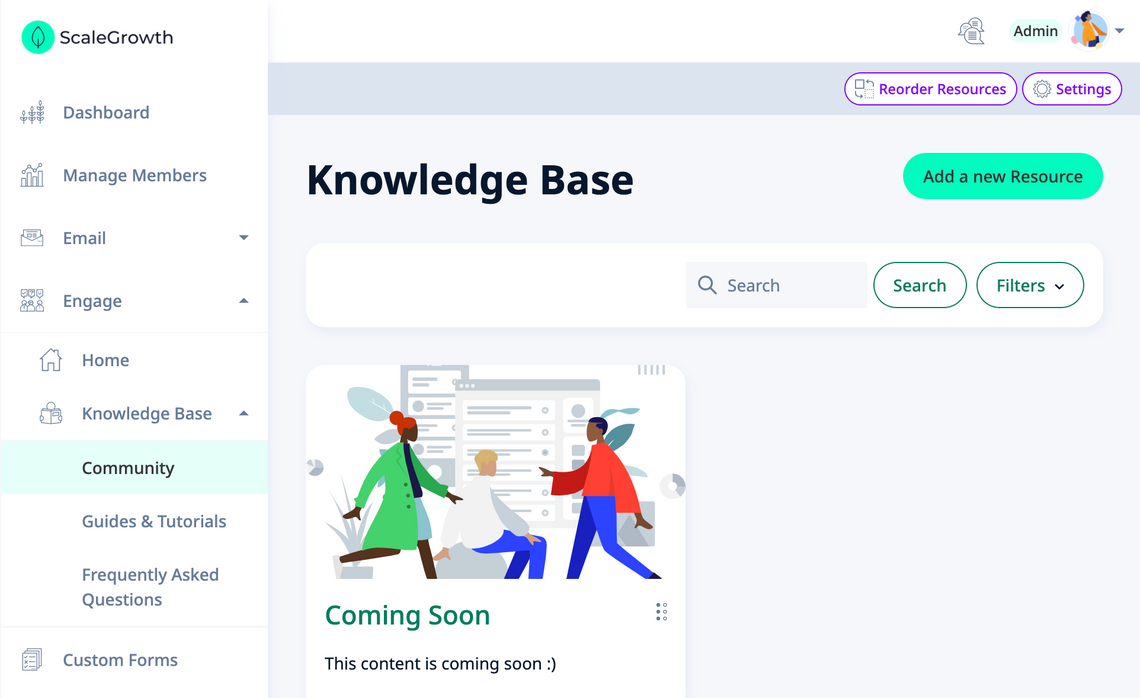
And the same Knowledge Base Folder set to display in the Tabs Mode:
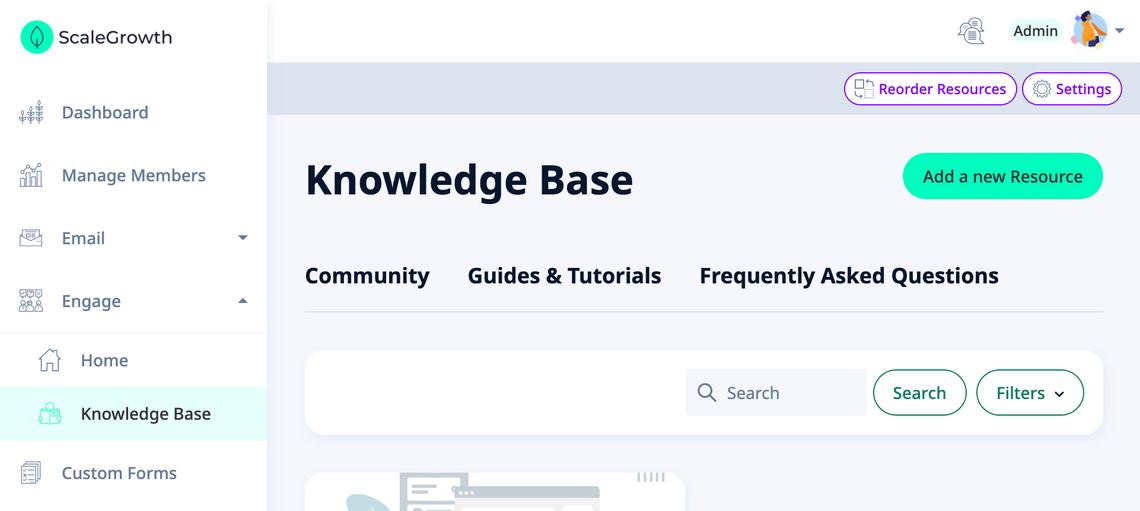
Additionally customizations:
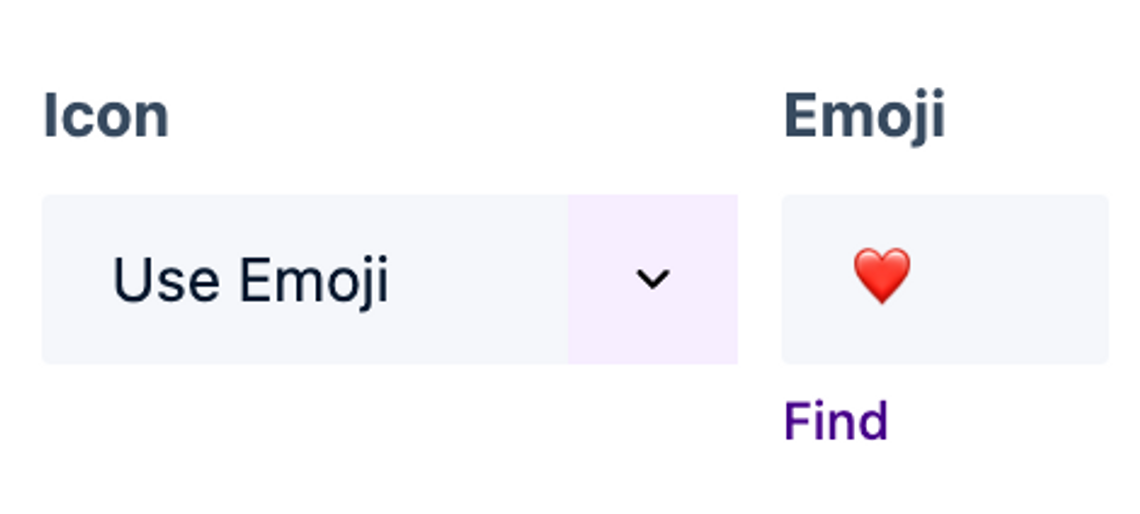
- The Icon dropdown allows you to either "Use Emoji" or select one our default Icons.
- If you selected "Use Emoji", you can paste your desired Emoji in Emoji designated box.
Note the handy Find link that takes you to Emojipedia, a great free resource for finding an Emoji of your choice that is supported across all the major devices types and platforms (Android & iOS on Mobile, different Browsers on Mac, Windows, or Linux on desktop, and so on)
Once you are done creating your Folder, you will need to place the Spaces that you want to be the sub-Menu items or Tabs into it. To do this:
- Head to Settings > Configuration > Navigation & Information Architecture
- Here, you drag and drop each items, or a group of items to achieve a desired custom navigation menu experience.
Once you save the new order, the navigation section will reflect the the order, Section headers, Folders and Spaces in them shown as either tabs or nested menu items.
To learn more, see all Quick Guides for the Navigation Menus Topic.
