
You can change the order in which the Menu Items appear to your Members on ScaleGrowth. To do so:
- Log into ScaleGrowth with your Admin account.
- Make sure you are in your Admin Role – you can use the Switch Role menu to get there.
- Head to Settings → Configuration.
- Under there, you will find the User Roles & Navigation section:
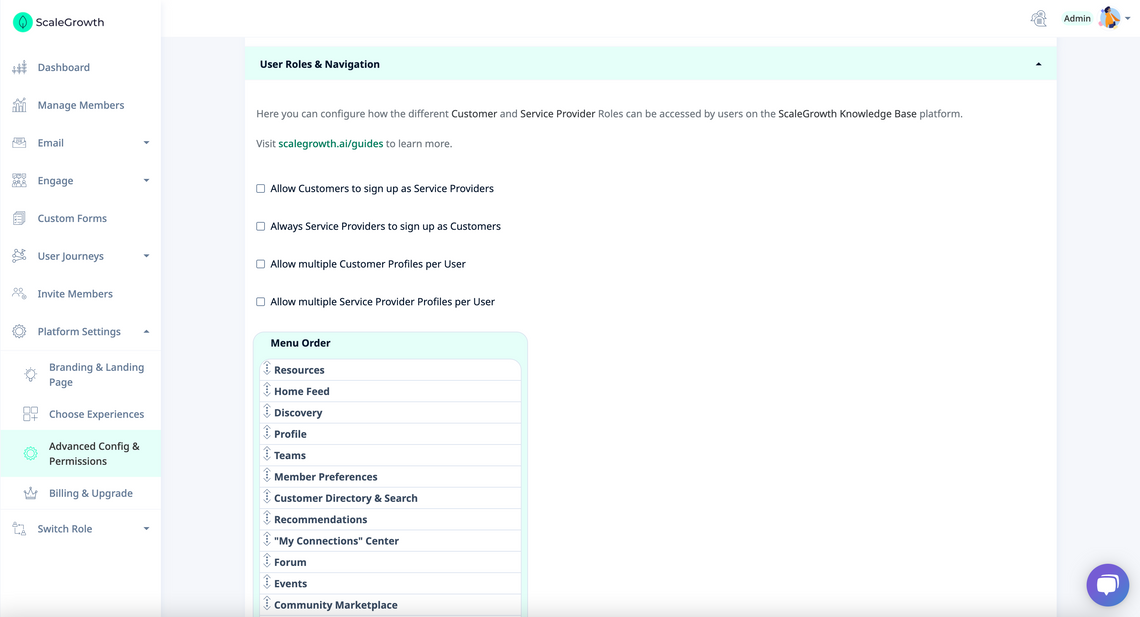
- Here, you can change the order in which Menus will appear for your Members by dragging and dropping each arrow item.
- If you have 2-Sided Marketplace enabled on your ScaleGrowth platform, this will also affect the Menu order for your Providers.
💡💡💡 Note that the First item in this Menu Order will be used at the Default View for New Members – and Providers if you have a 2-Sided Marketplace or a Mentorship Program enabled. 💡💡💡
To learn more, see all Quick Guides for the Navigation Menus Topic.
