Fundamentally, there are two approaches to onboarding existing Members:
Approach A. Pre-loading their info using Data Loads and having them "claim" their accounts
vs
Approach B. Having them Sign Up and complete the Onboarding from scratch
Customize Sign Up & Log In views
Regardless of whether you take approach Approach A. or Approach B. above, it is best practice to customize the Sign Up and Log In views for your platform.
- Enter Admin if you haven't already
- navigate to Settings > Brand & Design
- look for Sign Up section (note there is also a Log In one)
- update the brand imagery and messaging in there
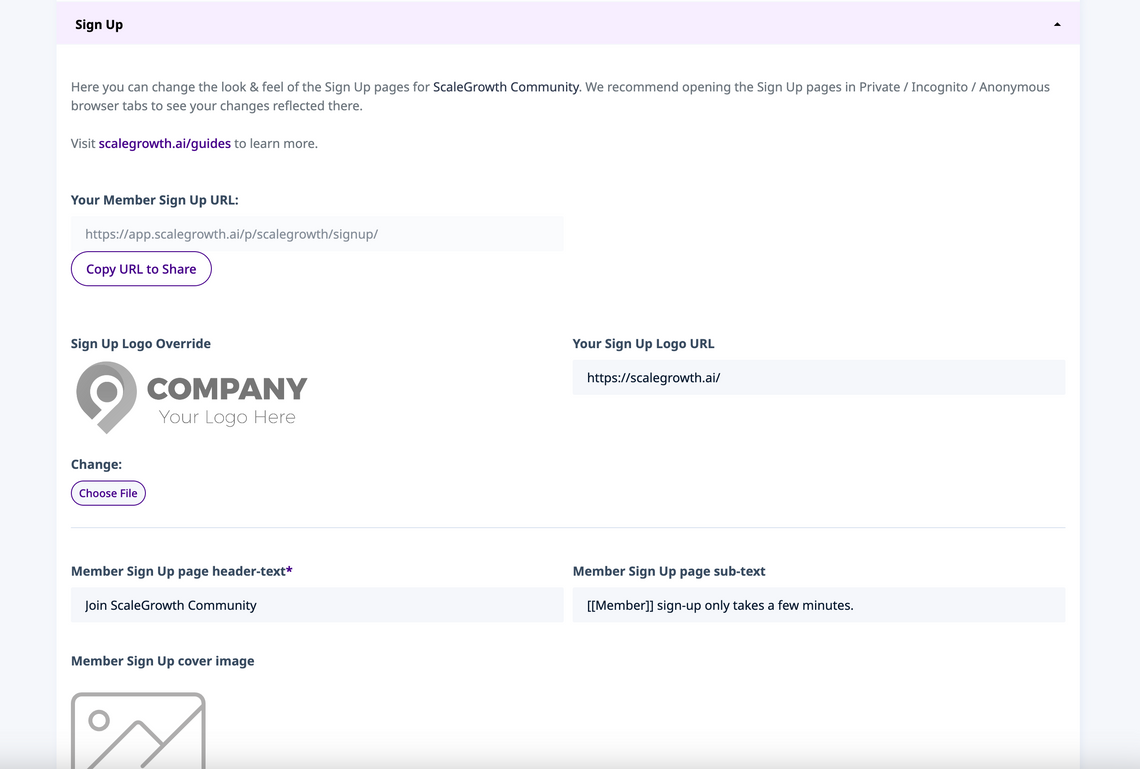
Note that if you leave the images blank, we will use our default set of cover images for Sign Up and Log In views – while re-using your main Platform logo as well.
Approach A. Pre-loading their info using Data Loads and having them "claim" their accounts
You can ingest all your current user data from any 3rd party CRM, Database, or platform you have. To do this, you simply need to be able to Export said data into a CSV [Comma Separated Values] file – essentially a spreadsheet.
- Please see How to Bulk Import or Bulk Update Member Data to learn how to do this
Once you have Data Loaded all your Member Profiles, the best practice is to set up a marketing communication along the lines of:
Dear Name,
We are launching an amazing new platform for you! Here are the list of benefits of why it is awesome and you should be excited about this:
Describe the Value they getAnd what makes your platform uniqueKeep it short, 2-4 bullets is ideal
And to make your life easier, we have already pre-loaded all your info into your account under [email protected] on our new platform. All you need to do is go to the Sign Up page and create a password for your privacy and security. You will then receive a verification link in your email to claim your account.
SIGN UP BUTTON
Please note that you must sign up with the same email – [email protected] – as this is the account we pre-loaded all your info into!
Approach B. Having them Sign Up and complete the Onboarding from scratch
This approach is very straightforward. Simply:
- Enter Admin if you haven't already
- navigate to Settings > Brand & Design
- look for Sign Up section (note there is also a Log In one)
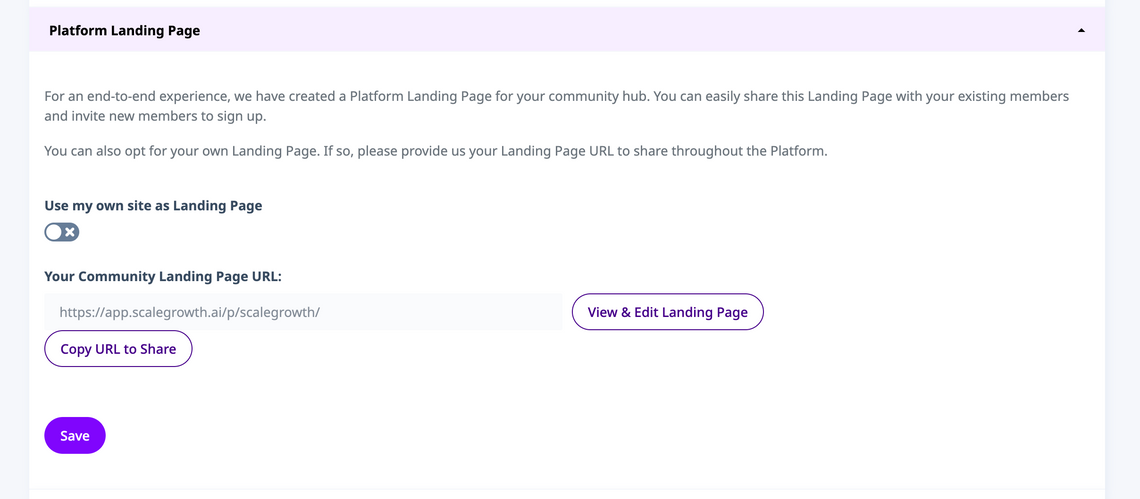
- grab the links to use with your marketing website if you have one already
- note that if you don't have a marketing website, there is a very simple version we provide
- head to Settings > Brand & Design again
- look for Landing Page
- make sure the Use my own site as Landing Page is disabled
- click View & Edit Landing Page to customize it
- the copy the URL from the Your Community Landing Page URL