
ScaleGrowth offers a powerful Automation Engine that you can use with Webhooks and 3rd party tools such as Zapier to automate day-to-day operations.
To set up Webhook Automations, please:
- Enter Admin if you aren't already
- Navigate to User Journeys > Workflows
- Under the Logic section, set the Trigger Event to Profile: Member Profile Update from Webhook
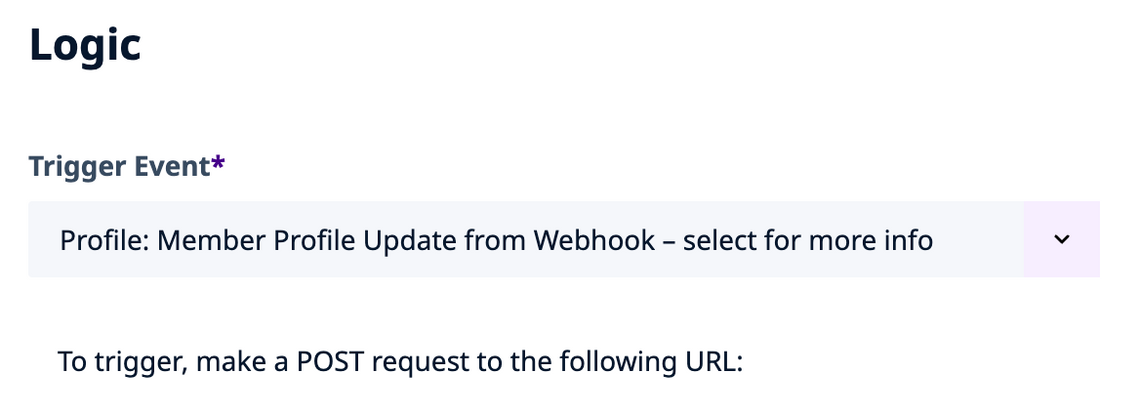
Note that ScaleGrowth will generate a unique URL for your Solution's Webhook Automations that will be displayed below.
The incoming POST Request Body is expected to be a JSON payload with either "email" or "sg_id" value required:
"email"– REQUIRED IF NO "sg_id" – the Email of the Profile to CREATE (if it doesn't exist already) or UPDATE (if it exists)."sg_id"– REQUIRED IF NO "email" – the ScaleGrowth Object ID to UPDATE an existing Profile.
The ScaleGrowth Object ID will be a string of 32 hexadecimal digits following the format "12345678-1234-5678-1234-567812345678", 36 characters in total.
If you have the Settings > Configuration > Navigation & Information Architecture > Allow multiple Member Profiles per User setting enabled, a valid existing "sg_id" will take precedence. If only an existing "email" is used while that setting is enabled, the oldest Profile for this Email will be updated.
ScaleGrowth User Groups can be managed with an optional "sg_user_groups" value:
"sg_user_groups"– "+key,-key,..."
Order of Operations:
- The API processes the "sg_user_groups" tokens sequentially from left to right.
- Each + key token will add the Member to the corresponding User Group.
- Each - key token will remove the Member from the corresponding User Group – provided it is not the last remaining User Group for this Member.
Accepted key values:
- Our Automation Engine will generate unique keys that correspond to your User Groups.
- Please refer to the in-application documentation displayed when you set the Trigger Event to Profile: Member Profile Update from Webhook
Unrecognized key values are ignored.
All Profiles must be a part of at least one User Group. New objects without any User Groups specified will default to the first User Group above.
You can configure your User Groups via ScaleGrowth UI:
Important Note: To ensure a smooth transition between User Groups, especially when changing membership, it's recommended to first add the Member to the new User Group before removing them from the current one (e.g., use "+2,-1" to move a Member from group 1 to 2).
This order of operations is vital for maintaining continuous User Group membership and for the correct triggering of any linked Automations and Workflows. For an in-depth understanding of how this impacts Email and Workflow Automations, learn more in our dedicated Knowledge Base article:
You can set up Data Updates to pass in Field data along with the POST Request Body of your Webhook.
Navigate to User Journeys > Onboarding & Profile > My Innovation Business Hub Profile and click Edit Fields in the top right to see the API: Fieldnames.
In the Data Updates below, enter "SG_API_FIELDNAME": "< FIELDNAME_IN_POST_BODY_JSON" – where SG_API_FIELDNAME is the Field API Fieldname, and FIELDNAME_IN_POST_BODY_JSON is the corresponding Fieldname in your POST Request Body.
