
For customers on our Scale or Enterprise plans, ScaleGrowth provides support for fully-custom UI styling using platform-wide Custom CSS Code Injection – which can be used to completely change the Look & Feel of your UI to fit your exact Design vision.
If you are already on one of these plans, to do so:
- Log into ScaleGrowth with your Admin account.
- Make sure you are in your Admin view – you can use the Switch Role menu to get there.
We currently support CSS stylesheet overrides in 3 different places:
- Settings → Configuration → Custom Code or Scripts – Platform-wide Page Header Code Injection which you can use to link to an externally-hosted CSS style sheet, or simply add a style HTML element directly.
- Refer to Internal and External under this HTMS Styles – CSS guide.
- Note that you can actually do a lot more than CSS in here – such as using Custom JavaScript if you happen to know how.
- Configuration → Forums / Resources / Events / Marketplace as well as Paywalls → Payments Settings – Content-Type-wide Custom CSS, look for Use Custom CSS Styles in there.
- The contents of this field will be inserted as a style HTML element in the corresponding page headers.
- Refer to Internal under this HTMS Styles – CSS guide.
- While viewing any given Space as an Admin, click Settings in the top right – Space-specific Custom CSS, look for Use Custom CSS Styles in there.
- The contents of this field will be inserted as a style HTML element in the corresponding page headers.
- Refer to Internal under this HTMS Styles – CSS guide.
The Space-specific Custom CSS will take precedence over the Content-Type-wide Custom CSS, which will in turn trump the Platform-wide styles.
How to find CSS Classes to Customize?
- We recommend using Google Chrome, then right-clicking and selecting Inspect in there.
- This should bring up the Elements Styles Inspector
- In there, look for CSS Classes that start with "sg-..." – such as "sg-item-title" in the example screenshot below.
- These special "sg-..." CSS Classes were added by our team just for you, so you can customize the UI easier!
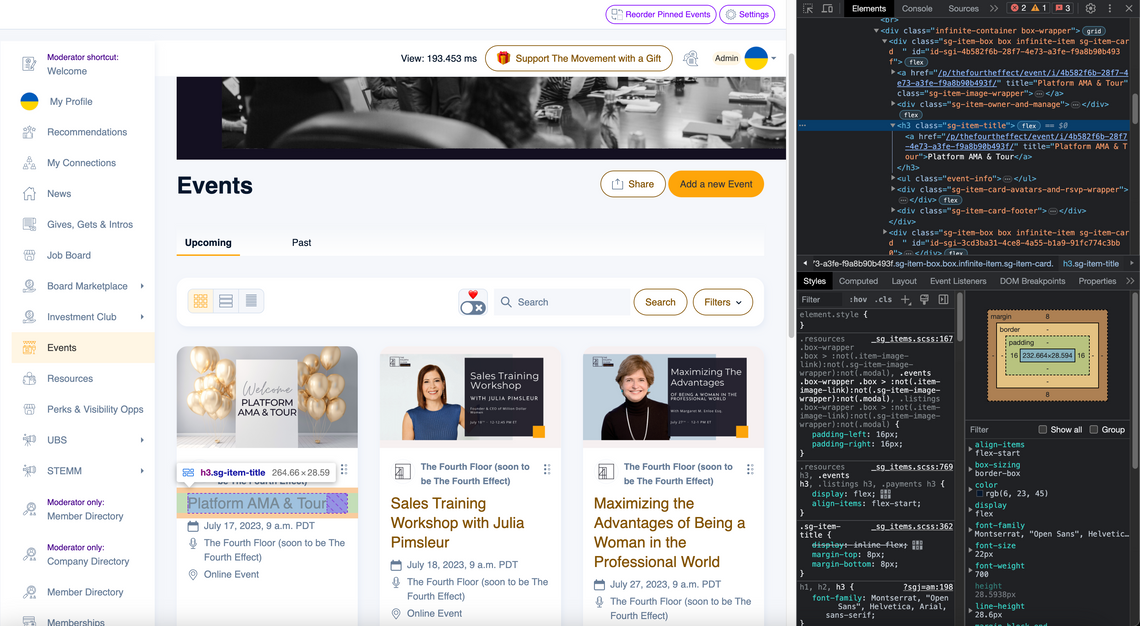
- One additional special-case is Buttons: you can also customize any CSS Classes that start with "btn-..."
- Please note that while you can use CSS to customize the look & feel of other elements in our UI, we can only guarantee consistent behavior and presence-on-page for the CSS Classes starting with "sg-..." or "btn-..."
- Should you ever encounter a UI element that you wish to customize missing such "sg-..." class, please add this to the Wish List under your Success Center or reach out to [email protected] – in most cases, we are happy to add one for you!
IMPORTANT DISCLAIMERS:
- Teaching folks "How to CSS" is outside of the scope of our Support team. Having said that, please check out this great CSS Tutorial by W3 Schools to learn all about the cool things you can do with it. They have great content & examples for all levels of CSS expertise, from beginners to advanced.
- Similarly, since Custom CSS is extremely powerful, it can be easy to break your UI with it, and unfortunately we can not provide debugging support for it. Our Support team might ask you to remove or disable your Custom CSS when helping you.
See also:
